




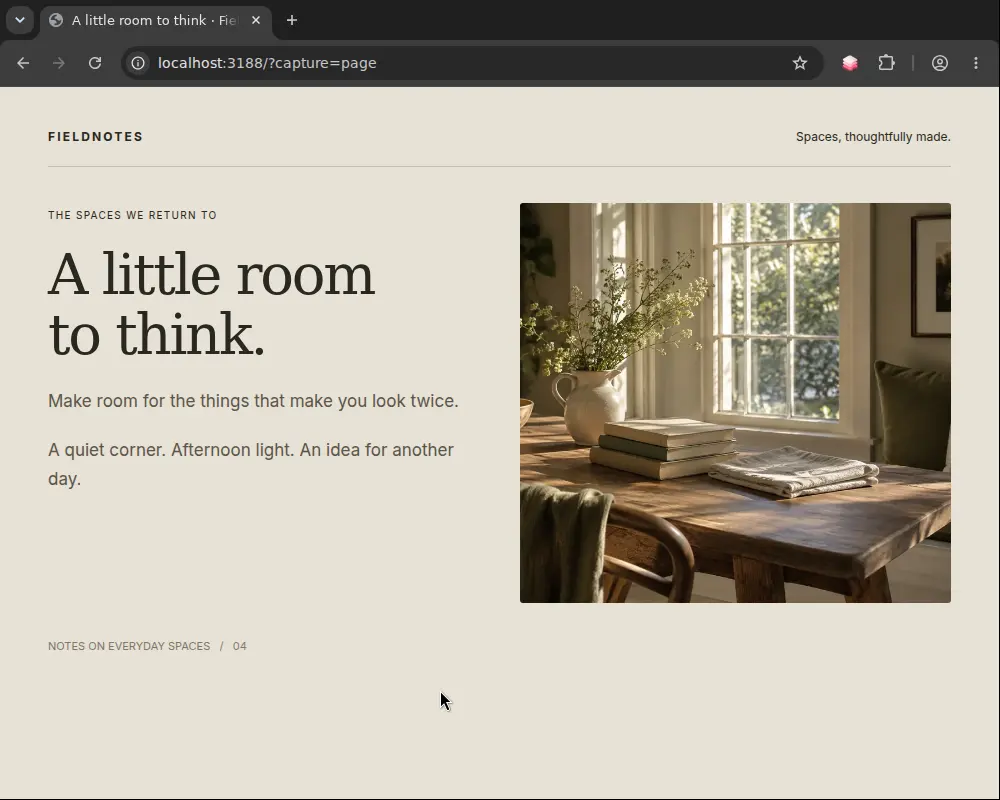
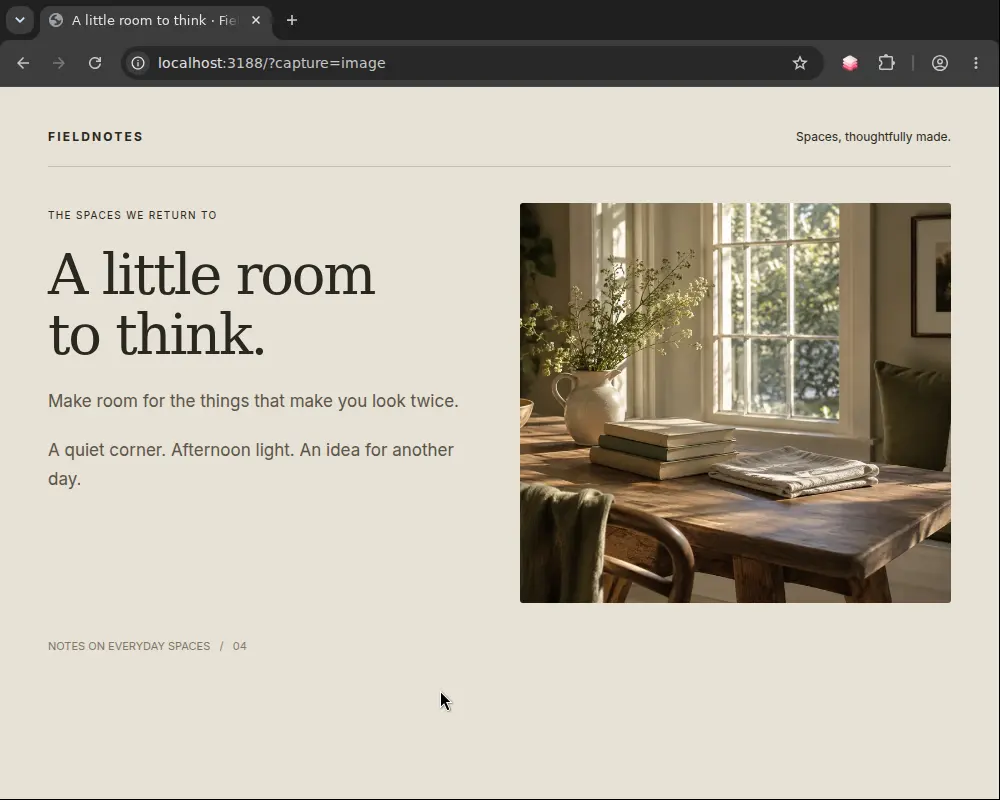
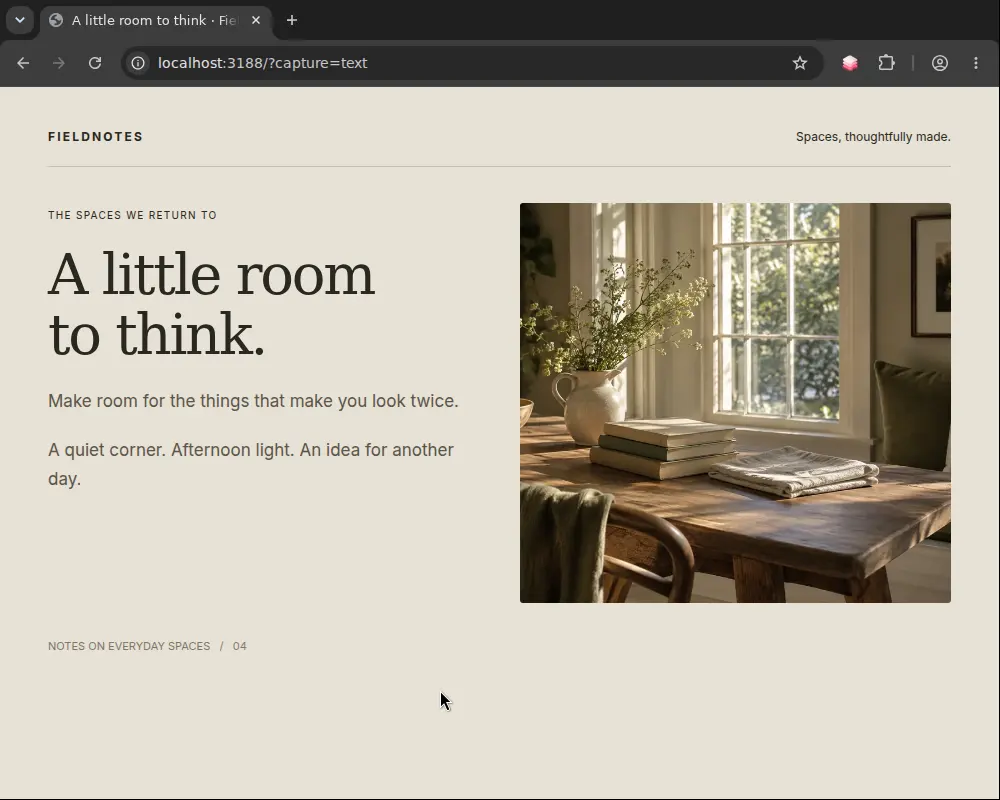
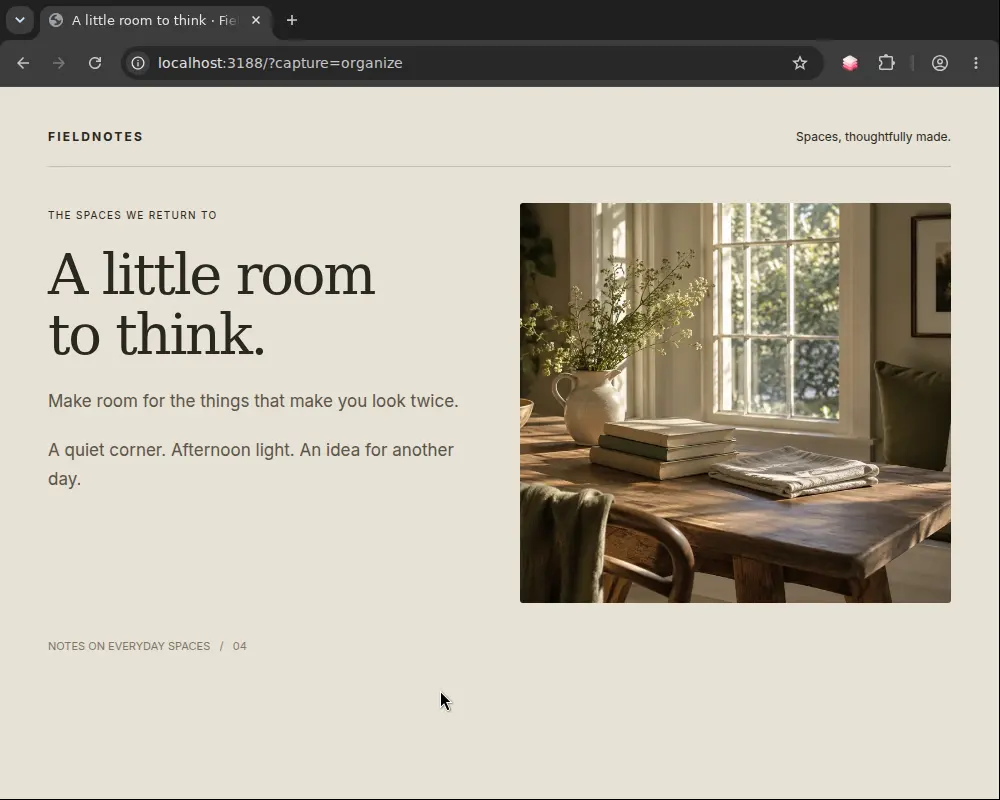
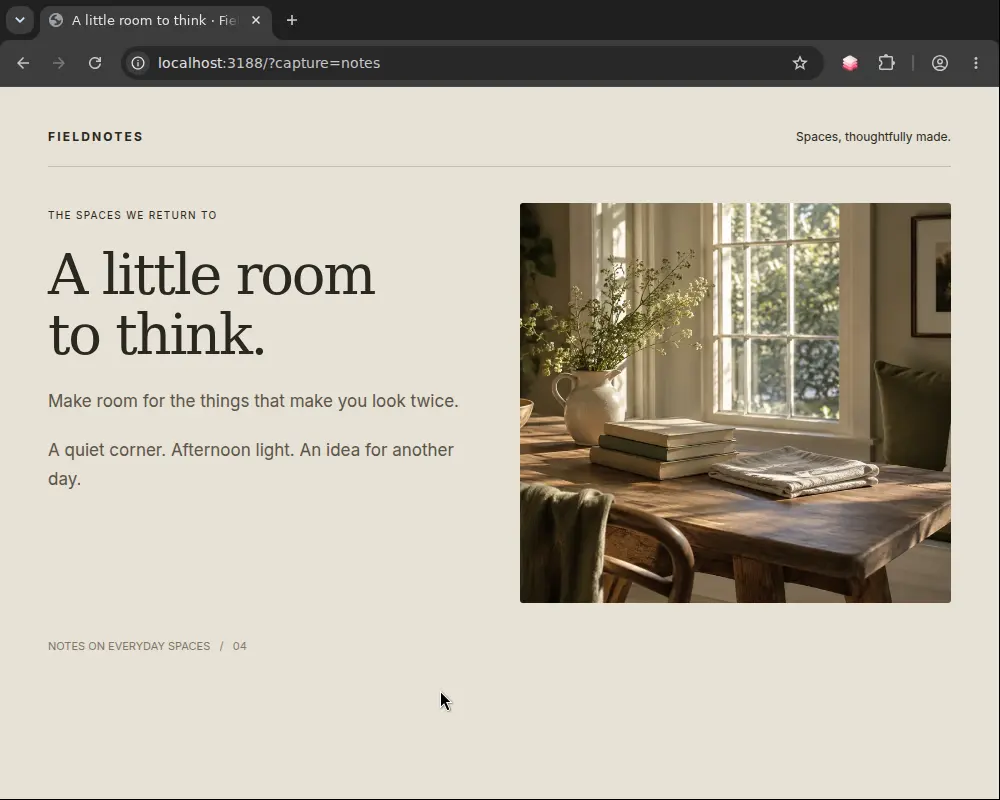
A little room to think
A book by the window. A quiet afternoon. Sometimes, a little space is all you need.
Your personal library
Save links, notes, media, and documents.
Keep them in a personal library on your device.
Free to use. No account needed.
Keepall Capture
For Google Chrome
Save pages, images, and selected text with their source; add a note with Alt+K on most websites.
Add to Chrome Set up CaptureA little order, on your terms
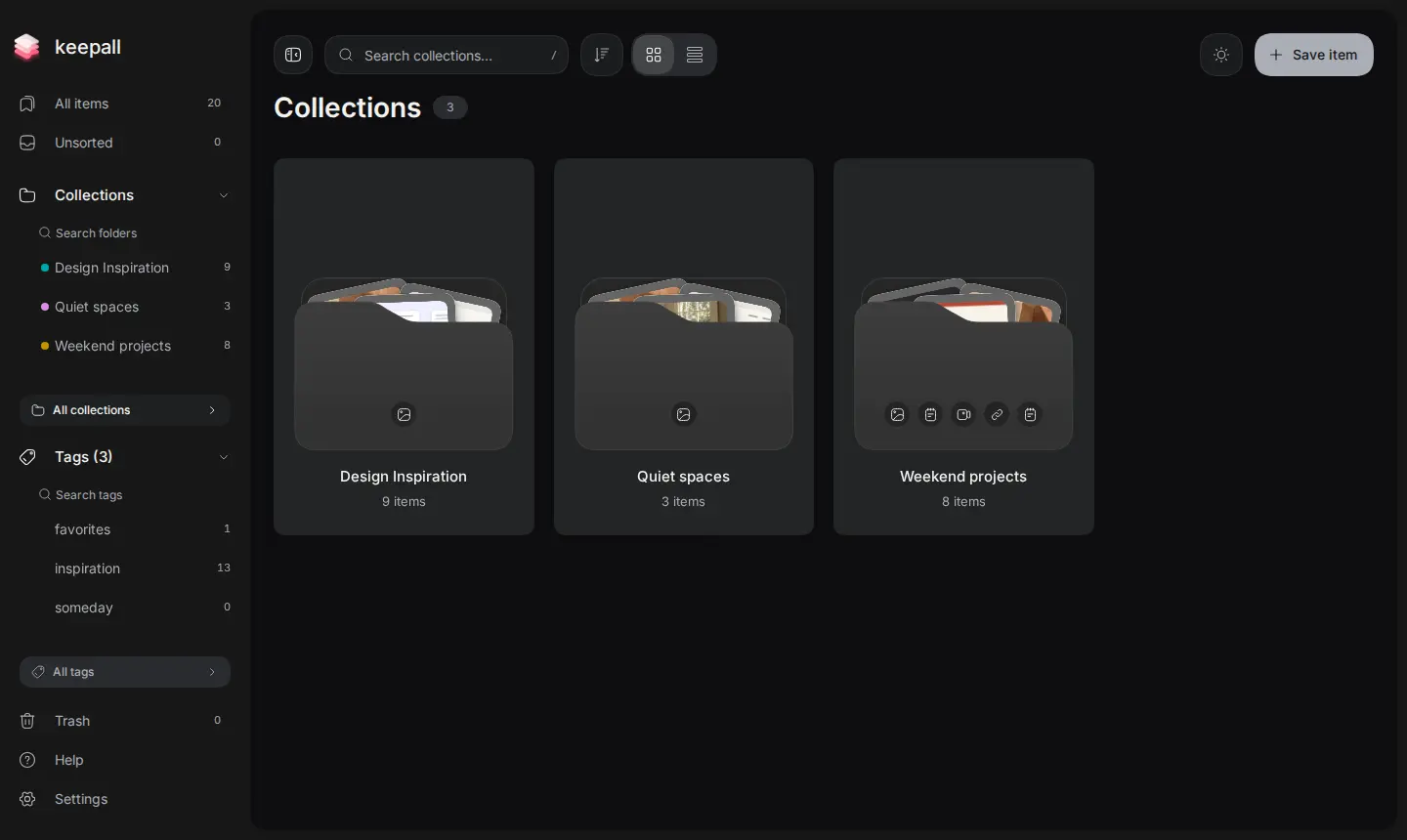
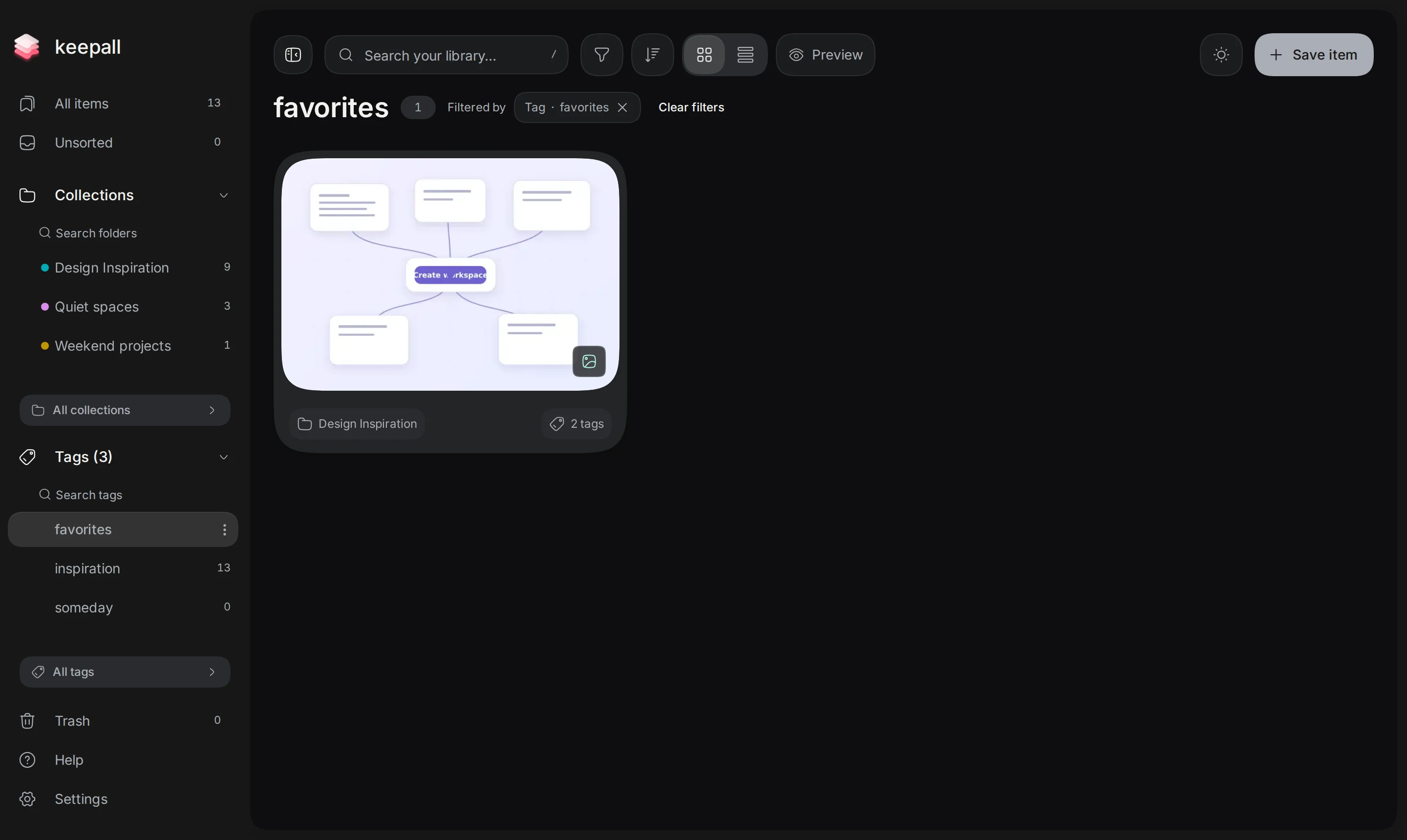
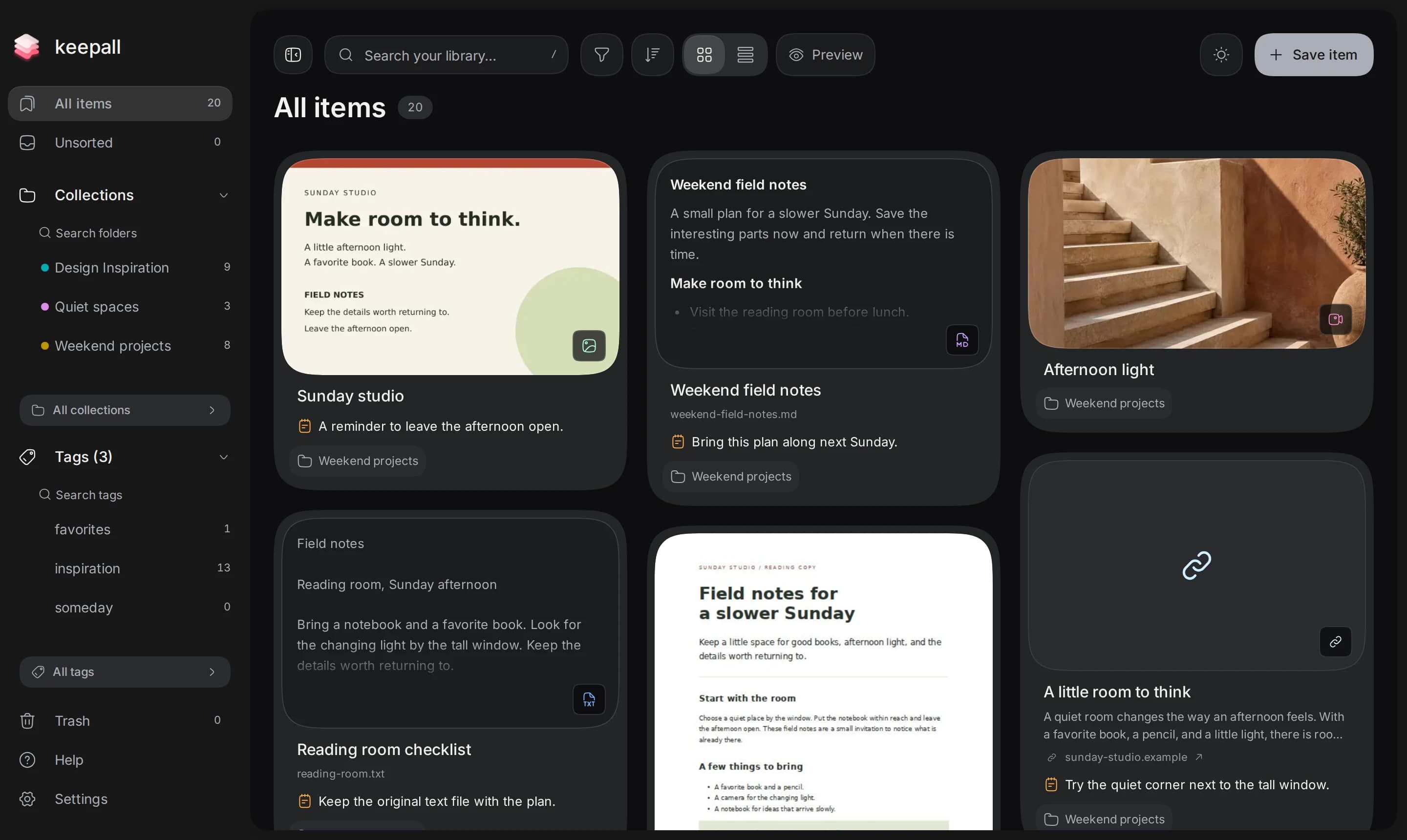
Use collections, tags, pins, and Unsorted, then search words inside your saves.
Find your saves3 results
Title: Website project
My note: A reference for the website project.
My note: Colors for the website project.
Personal means yours
Your library stays in this browser, with no account or automatic sync; download backups to protect it.
Back up your library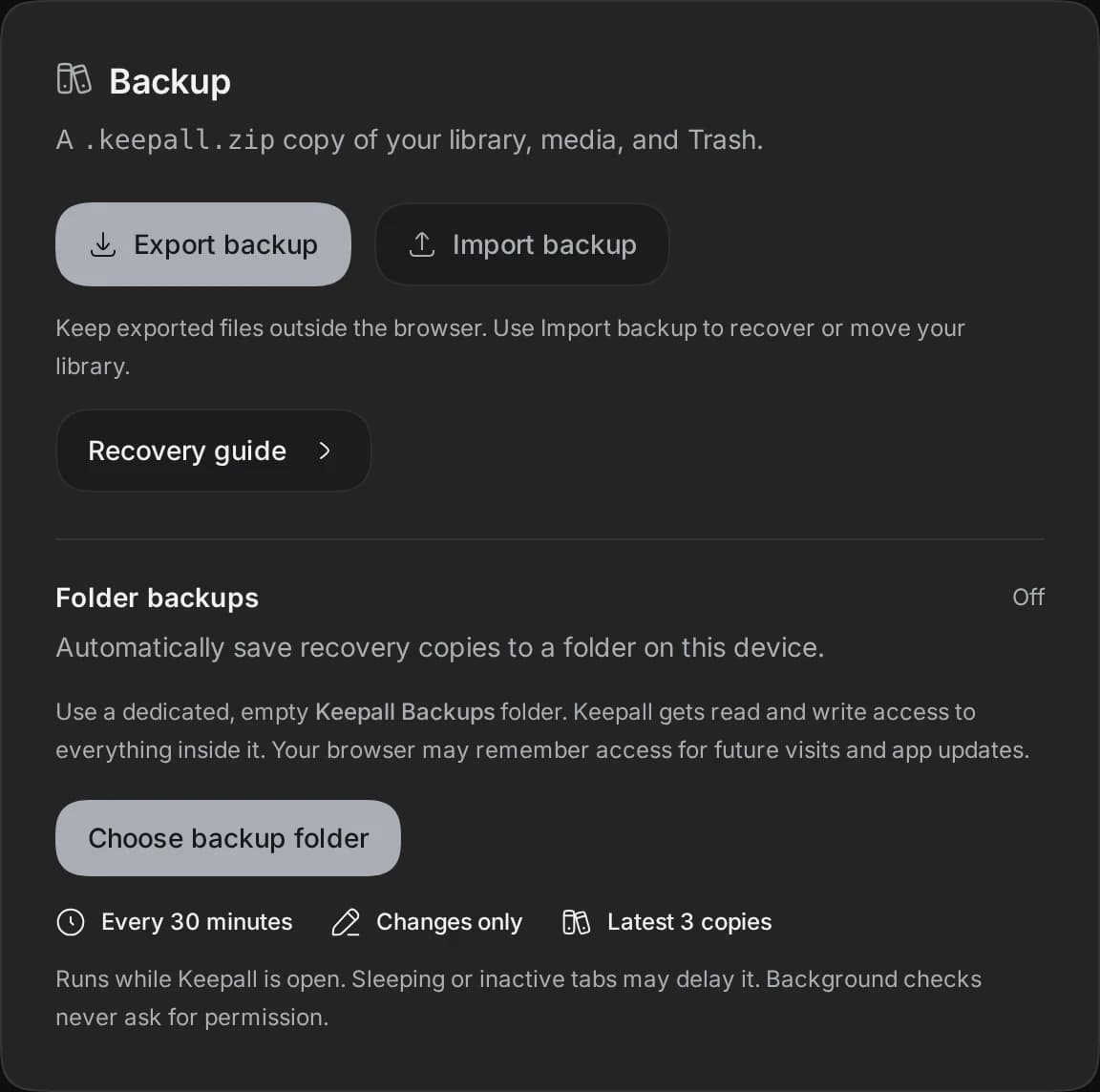
A clean reading view, available offline.

A book by the window. A quiet afternoon. Sometimes, a little space is all you need.
Browse pages, zoom in, and pick up where you left off.
Copy image colors and recognized English text.
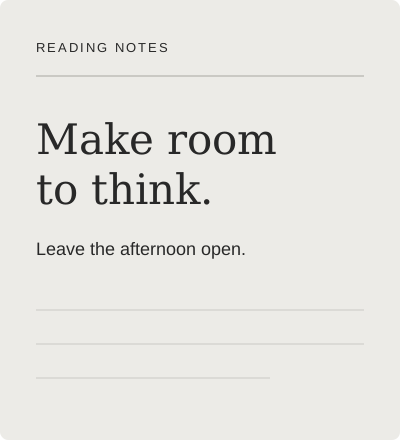
READING NOTES Make room to think. Leave the afternoon open.
Write notes or edit Markdown and text files.
Press play, even offline.
Browse saves without leaving your library.
Import bookmarks, supported files, or a folder.
One folder. Everything inside.
Once Keepall is cached, locally saved content works offline. Original websites and fetching new content need a connection. Offline guide. Previews, article fetching, and website icons use network requests. Visits use Vercel Web Analytics. Privacy details.
Open it from your desktop or Home Screen, or keep using your browser.
Your library stays on this device. Storage space and protection depend on your browser, so keep a backup. On iPhone, the Home Screen app has a separate library from Safari. Read about phone storage.
Yes. Open your library and start saving. You don't need an account.
There is no automatic sync. Each browser has its own library. Download a backup from Settings and import it on your other device to move your saves.
Yes. Use Markdown for headings, lists, tables, and code, and attach local images. You can also add a personal note to another save. Read the notes guide.
Keepall Capture is a Chrome extension for computers. On your phone, open Keepall in your browser or add it to your Home Screen, then save items inside the app.
Browser cleanup or clearing site data can erase a local library. Keepall asks for storage protection, but your browser may not grant it. Download a backup after important additions. On iPhone, the Home Screen app and Safari have separate libraries. How phone storage works.
Choose Save for offline to keep a readable article copy. Once Keepall is cached, saved articles, notes, documents, and local media work offline. Saving a link alone keeps its address. Original websites and fetching new content need a connection. Saving articles for later.