Open quick preview
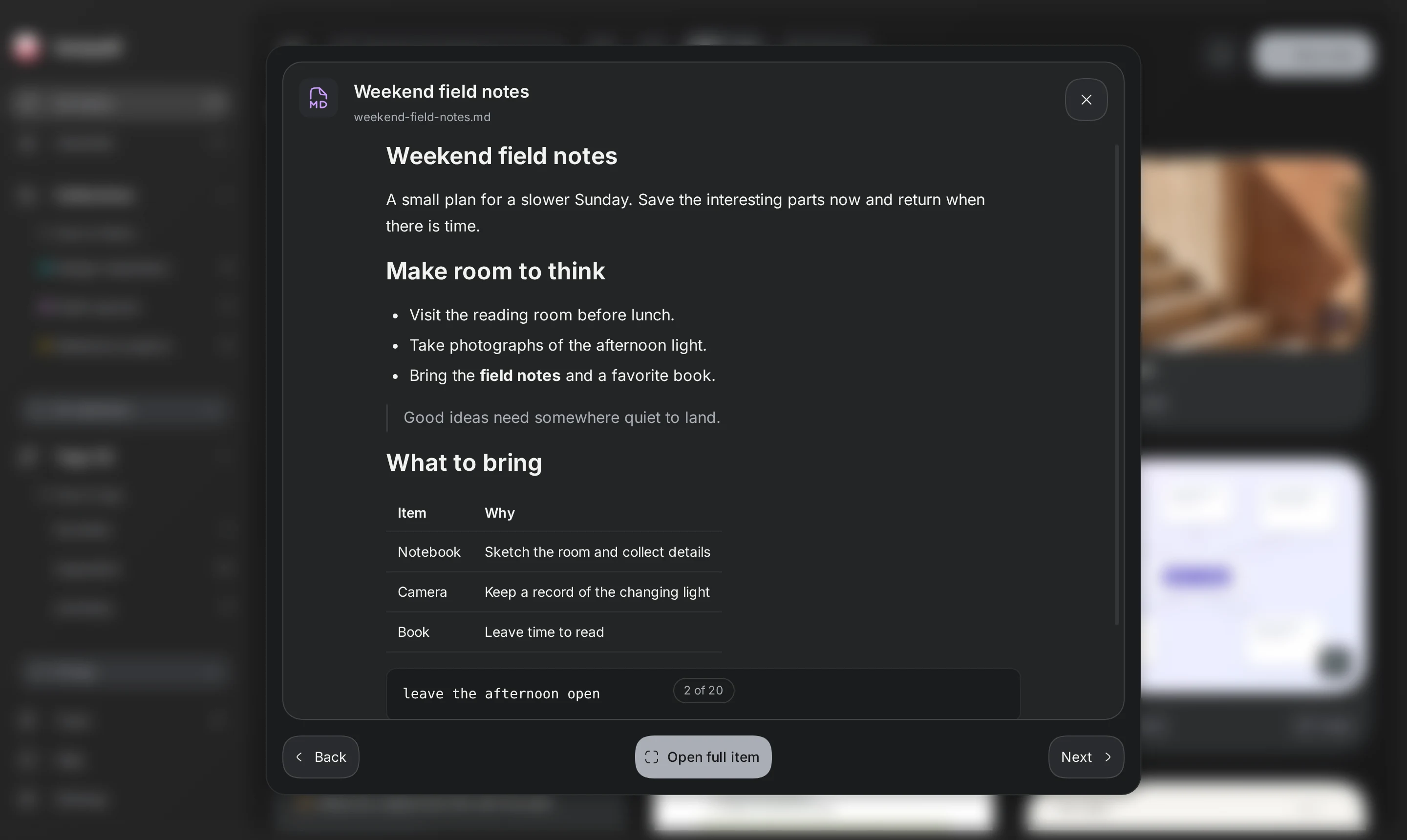
Preview browses the current collection, tag, or search results. It starts at the last focused item or the first result.
Fetch preview and Refresh preview are different actions. They request online link metadata, such as a title, description, and cover.
Save for offline and Update saved article save readable article text. That text appears on the full item page.
- Select Preview beside the Grid and List controls.
- To start with a specific item, select Preview in its item menu.
Use preview with the keyboard
Back and Next follow the current result order. Space is the default Preview results shortcut. Arrow keys continue browsing while preview stays open.
Shift with an arrow key extends a library selection. Escape closes preview and returns focus to the last previewed item.
Enter opens the full item page. A link title can open the original website instead.
Settings, General, App shortcuts can change Preview results. A changed assignment replaces Space.
- In the library, use Tab to focus a card or row.
- Use arrow keys to move between items.
- Press Space, or the assigned Preview results shortcut.
- Use Back, Next, or arrow keys to browse.
- To read the full item, press Enter or select Open full item.
Read content in preview
Notes and documents are readable in preview. Local video files have playback controls. Image notes scroll separately below the media.
For images, Fit shows the whole image. Scroll displays a long screenshot at the available width.
Gallery controls move between images in one item. Back and Next move between saved items.
Link preview shows the cover, description, source, and personal note. The saved article is on the full item page.
Change the list layout
Grid and List show the same search results and collection. Auto adjusts list columns to the available width.
- Select List beside Preview.
- Open List columns.
- Select Auto, 1 column, 2 columns, or 3 columns.