


Where the library is stored
Keepall stores the library in IndexedDB, a browser database on this device. It includes links, notes, articles, files, collections, and tags.
No account is needed. Each browser, profile, device, and site address has a separate library. There is no automatic cloud sync.
Clearing site data can erase the library. Browser or device cleanup can also remove it. A separate backup provides a recovery copy.
Export a backup
A .keepall.zip backup includes library data, articles, images, videos, and documents, including items in Trash.
Keepall does not encrypt backups or protect them with a password. Anyone with the file can read its contents.
A copy on another device or storage service can protect against losing this device.
- After important additions, open Settings.
- Select Storage & backups.
- Find Backup.
- Select Export backup.
- Keep the downloaded file in a separate location.
- Before clearing browser data, resetting a device, or changing browsers, export another backup.
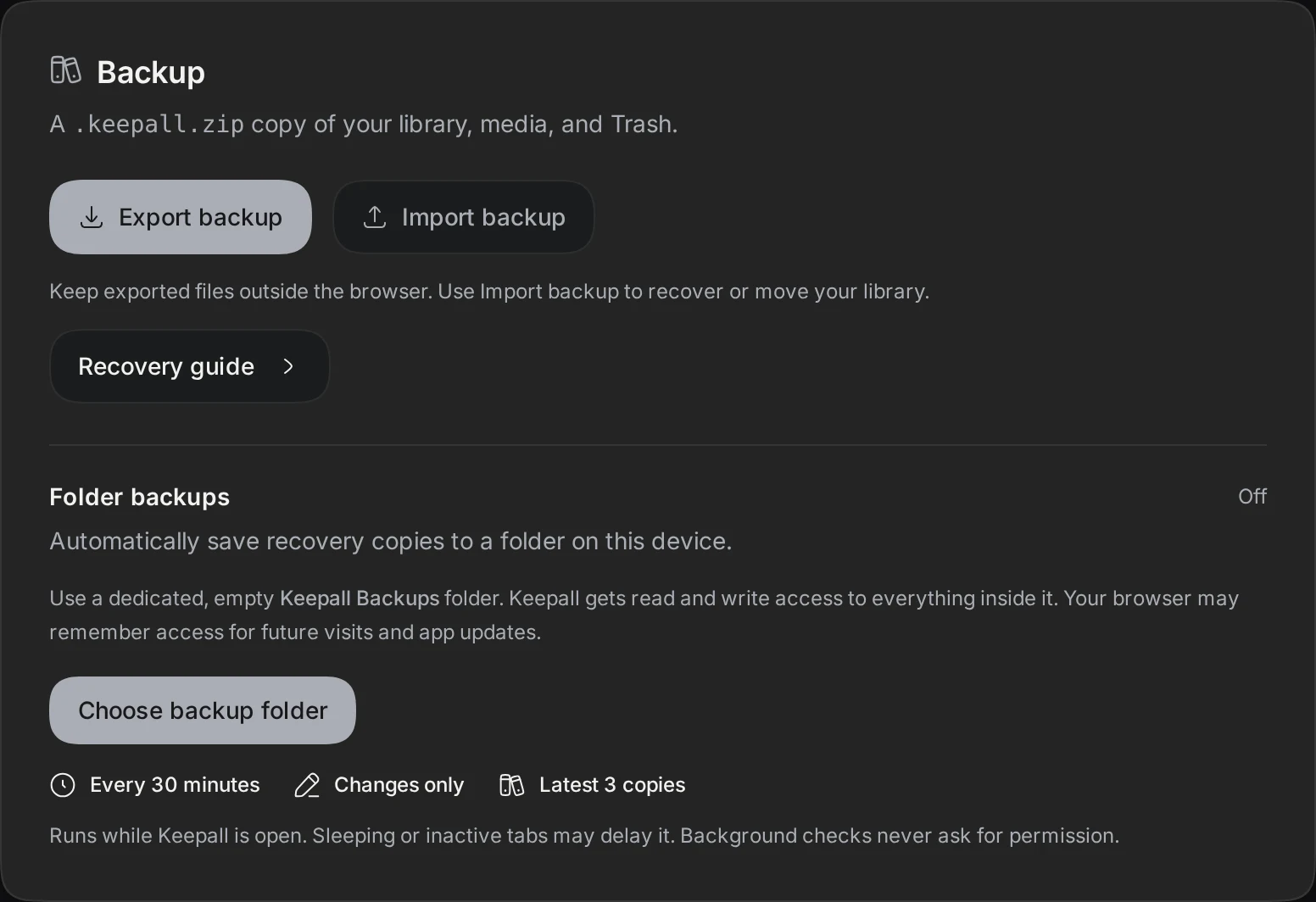
Set up folder backups
Folder backups need a supported browser and read and write permission. Other browsers can use Export backup.
Keepall saves the first backup immediately. The browser can remember folder access for later visits and app updates.
While Keepall is open, changed data saves approximately every 30 minutes. Inactive tabs or device sleep can delay a backup. Unchanged data creates no file.
Background checks do not request permission. Reconnect folder restores lost access. Failed saves keep completed backups and retry after 30 minutes.
Back up now starts a backup manually. Keepall keeps the latest three verified backups for this library in the selected folder.
If a backed-up library becomes empty, backups and cleanup pause to preserve recovery copies. Adding an item or importing a backup resumes them.
Turn off folder backups stops new saves and keeps completed files. Import backup restores a saved file. Clearing site data also removes the folder connection.
A folder on this device does not protect against losing the device. A separate copy elsewhere provides that protection.
- Open Settings.
- Select Storage & backups.
- Select Choose backup folder.
- Choose a dedicated empty folder for Keepall backups.
- Allow read and write access.
- Check that the first backup finishes.
Restore or transfer the library
Merge adds missing items and can use newer details for matching items. Tags combine. Replace library removes current items, including Trash, after confirmation.
A backup import transfers a copy once. It does not keep libraries in sync.
- Open Keepall in the destination browser or app.
- Open Settings.
- Select Storage & backups.
- Select Import backup.
- Select the backup file.
- Check the file details and current library totals.
- Select Merge or Replace library.
- Check restored items before deleting the original copy.
Protect storage on phones
Chrome on Android and Safari on current iPhones and iPads support local storage for Keepall. Capacity depends on the browser and free device space.
Installation does not provide unlimited storage. Keepall requests protection from automatic browser cleanup. The browser decides whether to grant it.
Installation and regular use can help the browser grant protection. Without protection, low space can cause data removal. Clearing site data can erase even protected libraries.
On iPhone and iPad, the Home Screen app has a separate library from Safari. A backup export and import transfers existing saves.
- Check the storage protection status in Settings.
- On iPhone or iPad, install Keepall before building the library.
- Export a backup after important additions.
- Keep a copy outside the app.
- Use a normal browser window for a library you want to keep.
Check storage space
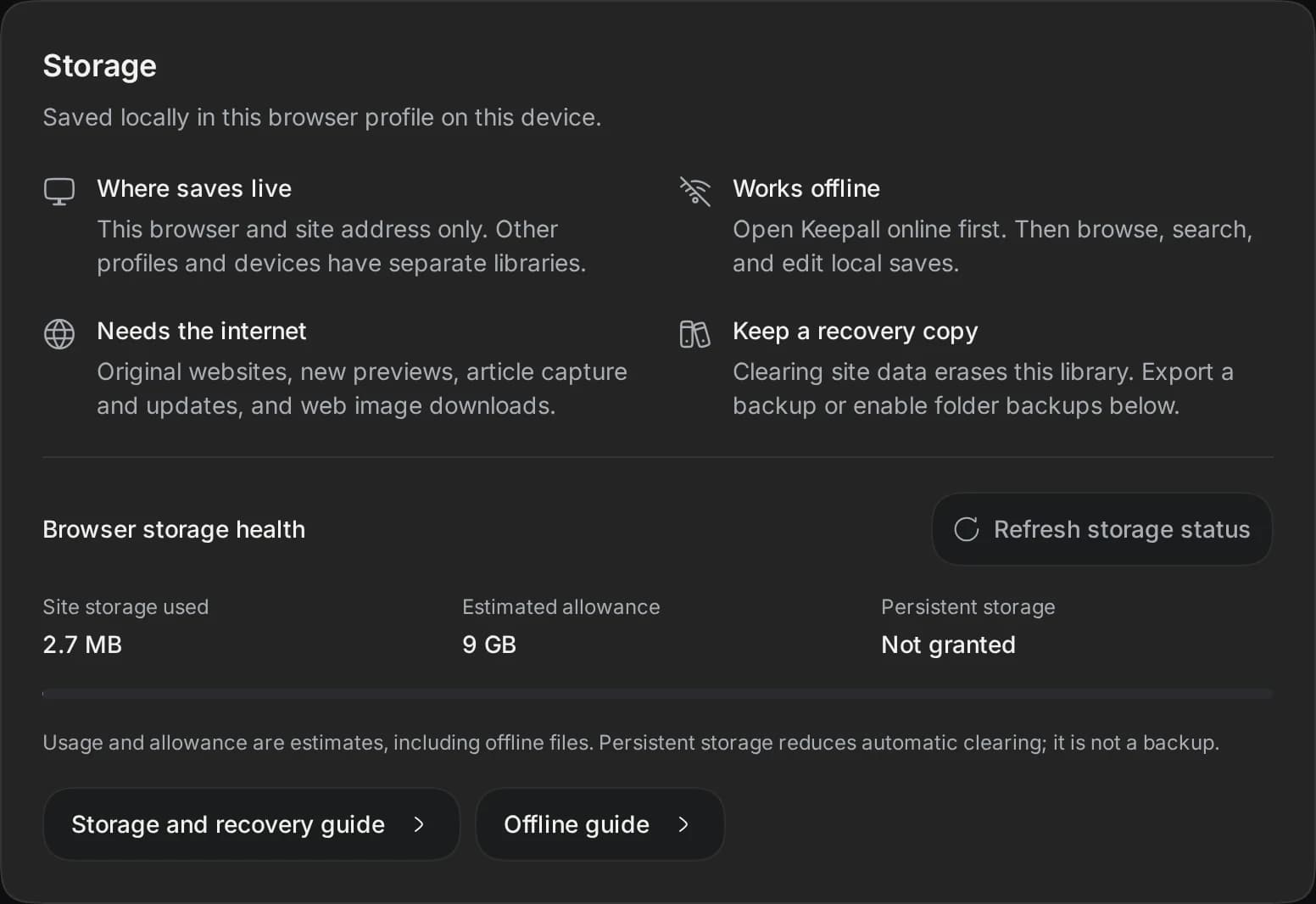
Storage & backups shows estimated browser usage, allowance, and storage protection. These values can change. Storage protection does not replace a backup.
Large images and videos use more space.
- Open Settings.
- Select Storage & backups.
- If storage is full, export a backup before removing items.
Internet requests for previews
For a link preview, Keepall can send the saved URL to its preview service. The service requests the website and image host.
These requests exclude personal notes, collections, and tags.
Without a local preview image, a link icon can load from Google's favicon service. That service receives the link hostname.
The icon can also load from the website's favicon address. Article capture sends its URL to Keepall's server to request the public page and supported images.