


Import documents
Add files in Save item imports PDF, UTF-8 text, and Markdown files. Bulk import accepts multiple files or a folder.
The Notes filter includes imported text and Markdown. The Documents filter includes all imported document types.
PDF limits are 50 MiB and 1,000 pages. TXT and Markdown limits are 10 MiB each. Scanned PDFs are viewable but have no image text recognition.
Import browser bookmarks
Browser bookmark exports use HTML. Keepall backups use a different format.
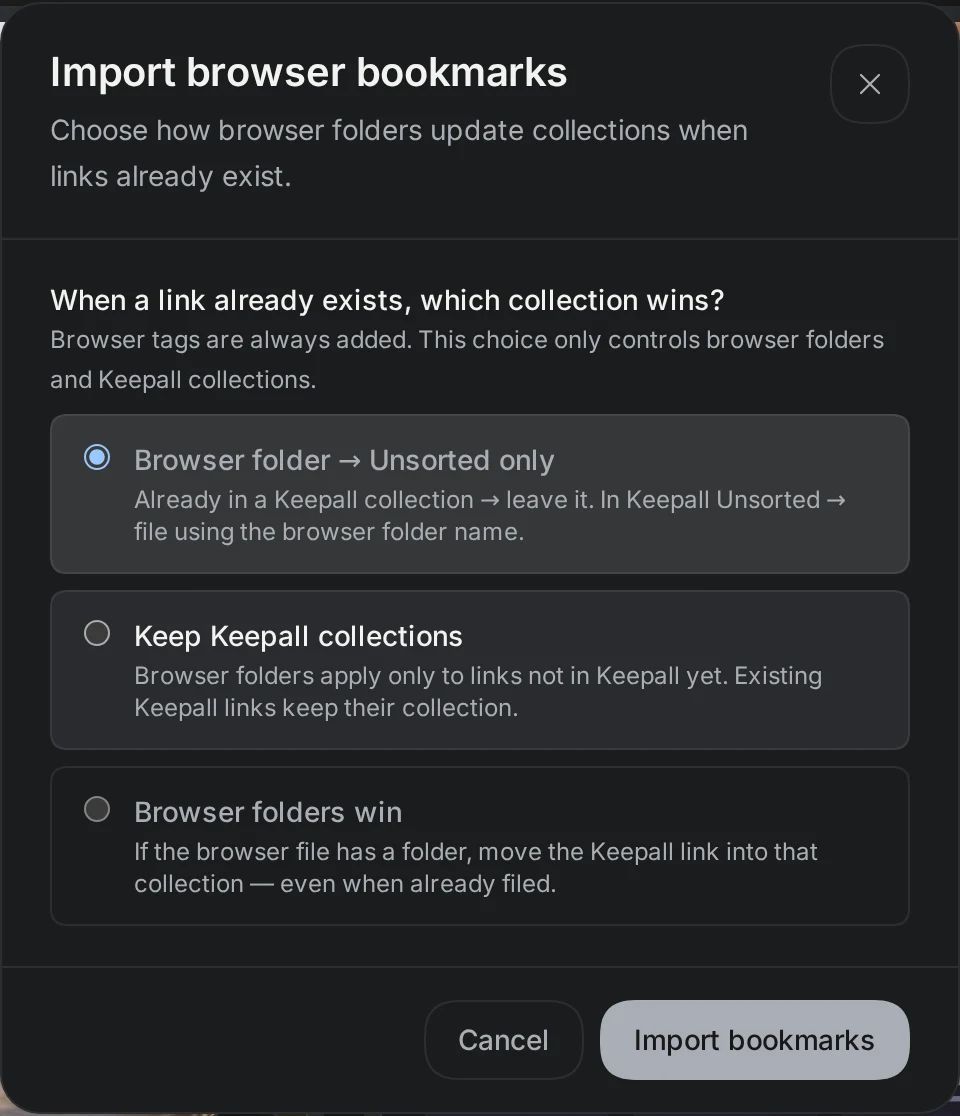
The Browser folder → Unsorted only option changes collections for existing links without a collection. Keep Keepall collections preserves the collection of each existing link.
Browser folders win assigns browser folders even to existing links that already have a collection. New links use their browser folder. Browser tags always add.
- Export bookmarks as HTML from your browser's bookmark manager.
- Open Save item.
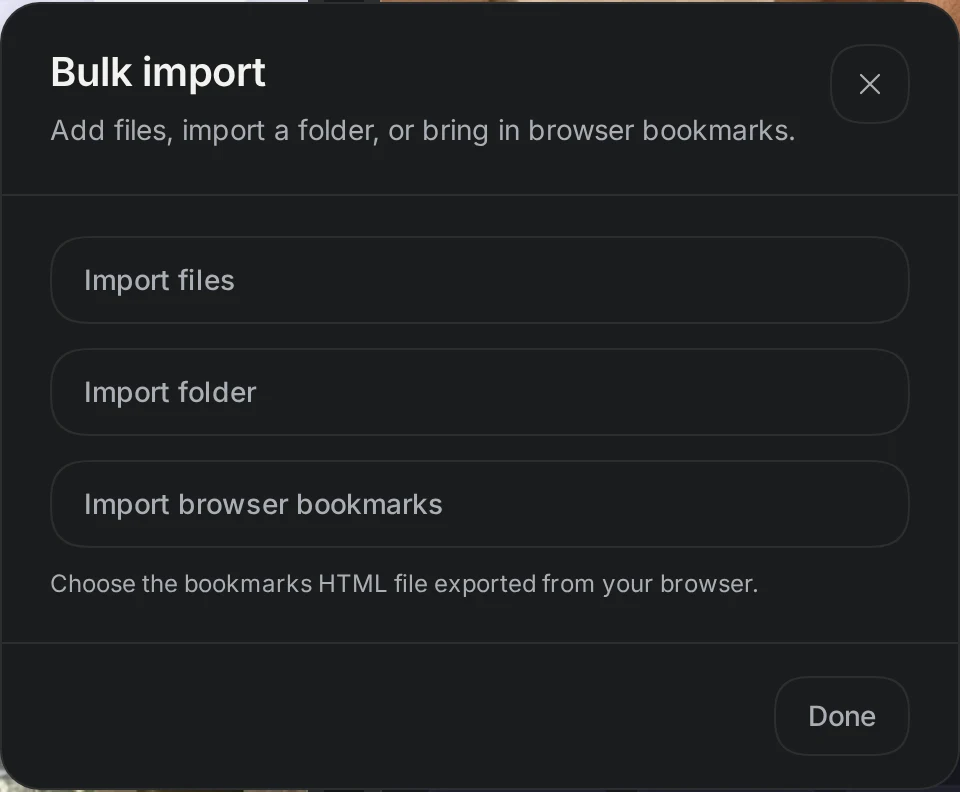
- Select Bulk import.
- Select Import browser bookmarks.
- Select the exported HTML file.
- Select the collection rule.
- Select Import bookmarks.
- Check the added, merged, and skipped totals.
- Select Done.
Import files or a folder
Bulk import reads nested folders. Multiple images can save as One image item or Separate image items.
One image item makes a gallery and accepts a caption. Documents, videos, and mixed file types always save separately. HTML documents are unsupported.
Folders use their name as the collection unless a collection is already selected. Unsorted removes that assignment. Add files can add to the open import drawer.
Cancel before Save leaves the library unchanged. Retry failed files keeps items that have already saved.
- Open Save item.
- Select Bulk import.
- Select Import files or Import folder.
- Select the files or folder.
- For multiple images, select One image item or Separate image items.
- Select tags and a collection if needed.
- Select Save.
- If some files fail, select Retry failed files.
Import a Keepall backup
Supported backups are .keepall.zip and older Keepall JSON files. Keepall checks the whole file before showing a comparison with the current library.
The comparison includes the backup date, items, Trash, tags, collections, and media.
Merge adds missing items. Matching items can use newer saved details. Tags combine. Replace library removes current data, including Trash, after a separate confirmation.
Replace restores backed-up app shortcuts. Merge keeps current app shortcuts.
- Export a backup of the current library before replacing it.
- Open Settings.
- Select Storage & backups.
- Select Import backup.
- Select the backup file.
- Check the comparison.
- Select Merge or Replace library.
- If replacing, check the separate confirmation before continuing.
- Check imported notes and media before deleting the original copy.