


Import a document
Supported files are UTF-8 TXT and Markdown up to 10 MiB each, and PDF up to 50 MiB and 1,000 pages.
Password-protected PDFs need an unlocked copy. Bulk import accepts multiple files or a folder.
The Notes filter includes imported TXT and Markdown with standalone notes. The Documents filter includes all imported document types.
Retry failed files keeps files that have already saved.
- Open Save item.
- Select Add files.
- Select the document.
- Select a collection and tags if needed.
- Select Save.
- Select Open full item in the item menu.
Read a PDF
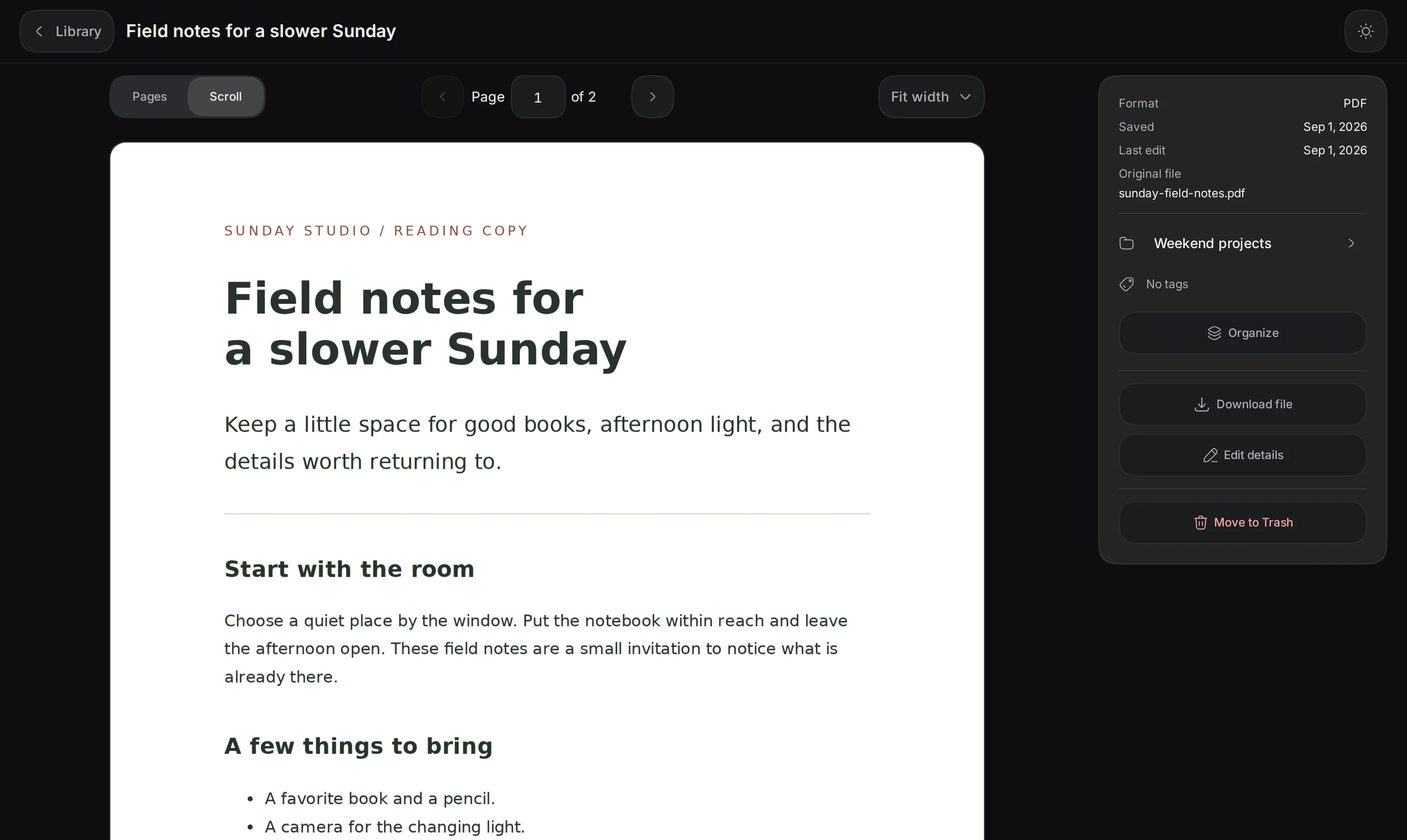
Pages shows one page at a time. Scroll shows the whole document. Previous page and Next page move between pages.
The zoom menu offers Fit width and values from 75% to 200%. PDFs with a text layer allow text selection.
Scanned pages remain viewable. Keepall does not recognize text in scanned PDF page images.
- Select Pages or Scroll.
- To jump to a page, enter its number in Page.
- Press Enter.
- Select a zoom setting if needed.
Read and edit text files
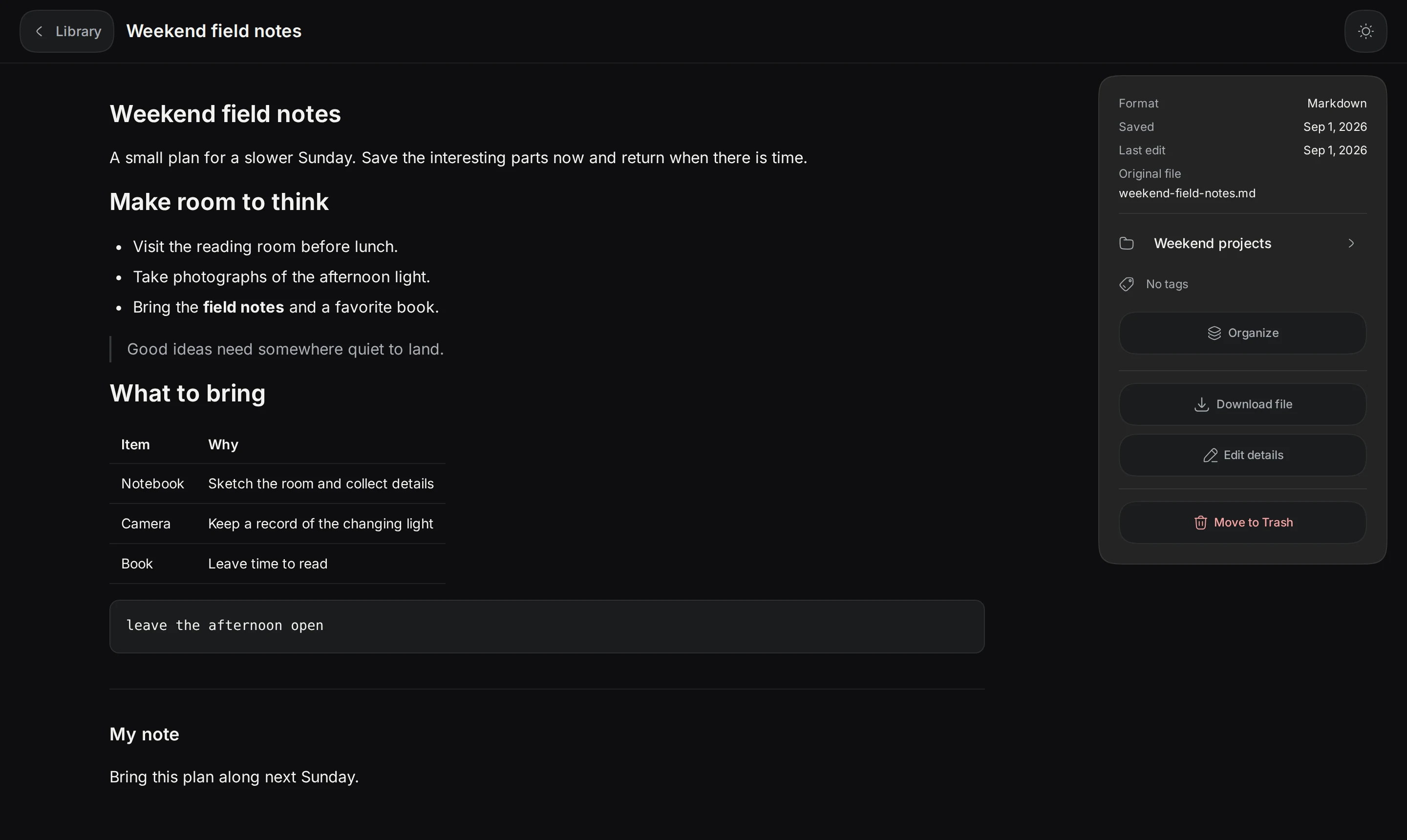
TXT files show saved text. Markdown renders supported headings, lists, tables, and code. Imported Markdown does not load remote images or embedded HTML.
Saving edits changes Keepall's copy. The original file on the device stays unchanged.
Reading previews stop at 200,000 characters. Download file provides the complete saved file, including edits.
- To change saved text, select Edit.
- Edit the text.
- Save the changes.
- To keep a separate copy, select Download file.
Add a personal note to a document
A personal note stays separate from document contents. It can use plain text or Markdown.
Changing a PDF title or personal note does not change the PDF file. Download file provides a copy of the saved document.
- Select Edit on the item.
- Enter a personal note.
- Save the changes.
Search and back up documents
Search includes titles, filenames, tags, personal notes, and saved file contents. TXT and Markdown search extends beyond the shortened reading preview.
PDF search uses selectable text. Scanned pages need a text layer to match.
Document reading, editing, and search run on this device. Keepall backups include document files and saved edits.
- Export a backup before clearing browser data or transferring the library.