


Write a note
Standalone notes do not need a link or media file. Titles, collections, and tags are optional. Notes start as plain text.
Markdown enables formatting. Preview shows the formatted note. Edit returns to writing.
- Open Save item.
- Enter the note.
- Add a title, collection, or tags if needed.
- For formatting, turn on Markdown.
- Select Preview to check the result.
- Select Save before closing the editor.
- To change the note later, select Edit in its item menu.
Format a note with Markdown
Markdown supports headings, lists, bold text, emphasis, inline code, fenced code blocks, and tables.
Rendered checklists are read-only. Changes to the Markdown in Edit update the checkboxes.
- For a heading, start the line with # and a space.
- For a list item, start the line with - and a space.
- For an ordered list, start the line with a number followed by a period and a space.
- For bold text, use **text**.
- For emphasis, use *text*.
- For inline code, put backticks around the text.
- Select Preview to check the formatting.
- Save the changes.
Add an image to a note
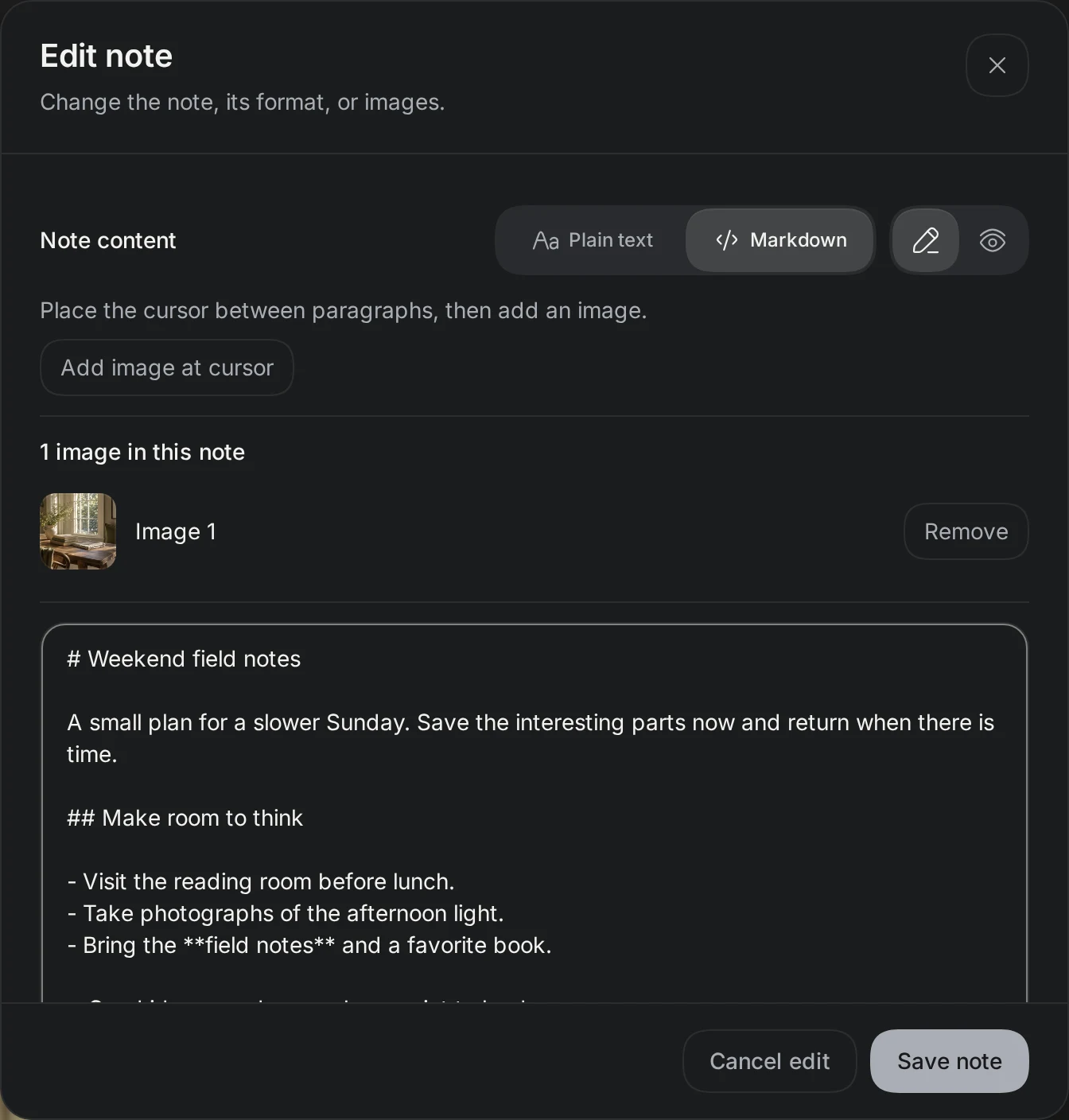
Local image attachments are available for standalone notes. The editor lists attachments below its controls.
Keepall stores attached images locally and includes them in backups. Imported Markdown does not load remote image links.
- Open the standalone note in Edit.
- Put the cursor where the image should appear.
- Select Add image at cursor.
- Select an image from the device.
- To remove an attachment, select Remove beside it.
- Save the changes.
Add a personal note to another item
Links, images, videos, and documents can have personal notes. Plain text and Markdown are available.
The note stays separate from article or document contents. Search includes the note text. Local image attachments are only available in standalone notes.
- Select Edit in the item menu.
- Enter why you saved the item or what you need to remember.
- Save the changes.