

Save images
Supported formats are PNG, JPEG, GIF, WebP, and AVIF. Each image can be up to 20 MiB.
A title, note, and source address are optional. Unsupported formats or larger files need conversion or a smaller copy.
- Open Save item.
- Select Add files, or paste an image with Ctrl + V or Cmd + V.
- Select the image files if needed.
- Add details if needed.
- Select Save.
Browse an image gallery
An image item can hold several images. The first image is its cover. The full item has controls to add, replace, or remove images.
Scroll shows the gallery vertically. Slides shows one image at a time. Switching views keeps your position.
The full-screen viewer has zoom and gallery navigation. Closing it returns to item details.
- Open the image item.
- Select Scroll or Slides.
- To open the full-screen viewer, select the large image.
Extract and copy colors
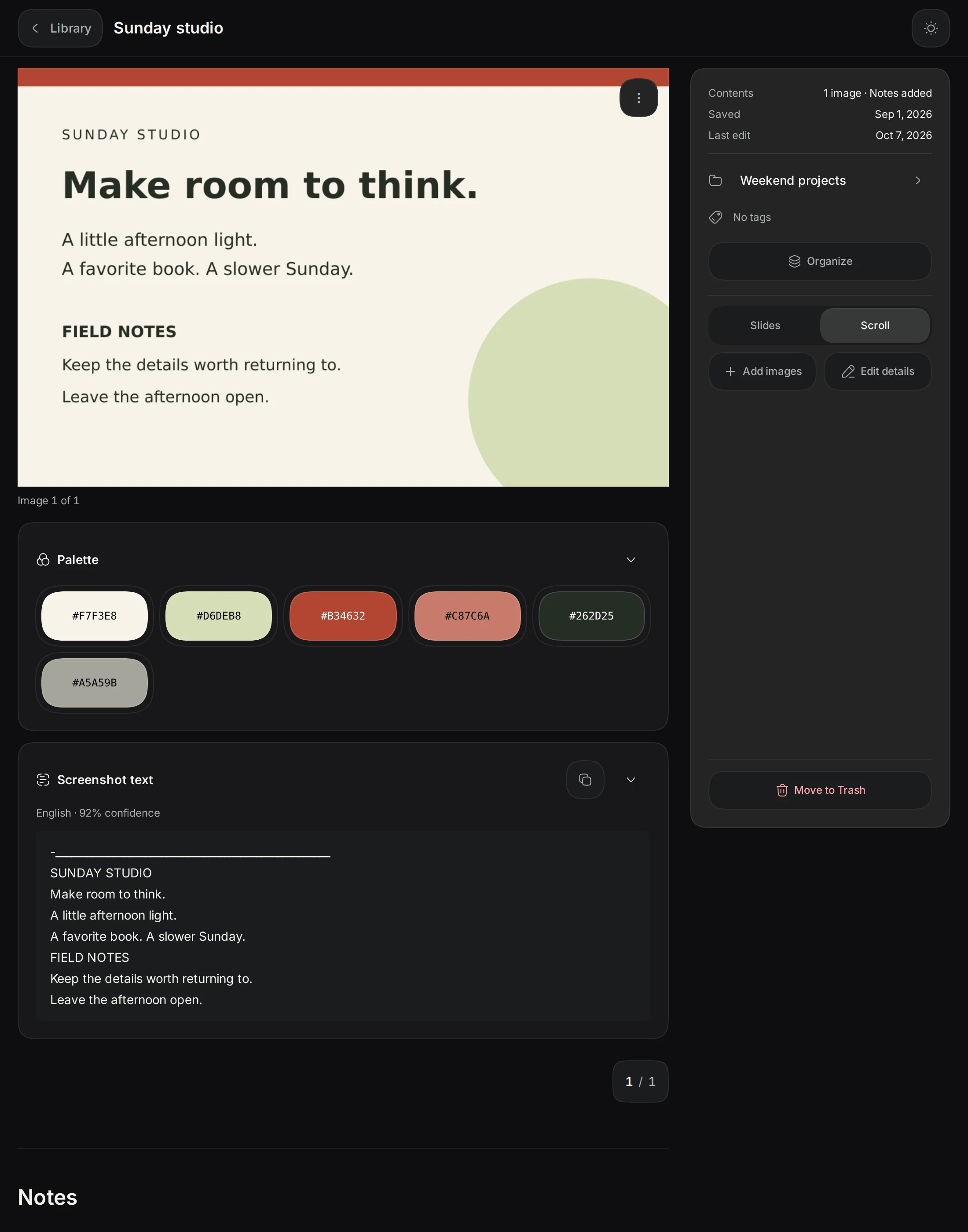
Extract palette samples up to six colors on your device. The Palette card appears below its image and before personal notes.
A swatch copies its hex code. A checkmark confirms the copy. Its menu can copy the code or search for similar colors.
The Palette card can collapse or expand. Refresh palette repeats the analysis. Cancel stops it. Retry palette repeats a failed analysis.
Analysis accepts images up to 32 megapixels. The separate saving limit is 20 MiB.
Color search accepts color:red or color:#FF0000. Words can narrow the results, such as color:red receipt. Only images with an extracted palette match.
- Open the saved image menu.
- Select Extract palette.
- To copy a hex code, select a swatch.
- For pointer access to the swatch menu, right-click a swatch.
- For keyboard access, focus the swatch.
- Press Shift + F10.
- Select Search library for nearby colors.
Read and search image text
Read text recognizes English text in saved images. The Screenshot text card appears below its image and before personal notes.
Progress shows during recognition. Cancel stops it. Retry reading text repeats a failed attempt. Read text again replaces previous results.
The copy button copies the result and shows a checkmark. The Screenshot text card can collapse or expand. Recognition can make mistakes.
Each gallery image has its own palette and recognized text. Replacing or removing an image removes its analysis. Backups include these results.
Recognition runs on your device without uploading images. First use downloads the engine and English data from Keepall's files, so it needs a connection.
Later offline recognition needs all engine files and the cached app. Missing files need an internet connection. Existing results remain readable and searchable locally.
Read text does not recognize scanned PDF pages or transcribe video. Analysis accepts images up to 32 megapixels. The saving limit is 20 MiB.
- Open the saved image menu.
- Select Read text.
- Wait for recognition to finish.
- Check the result against the image.
- To find the image later, search words from the checked result.
Save a video file
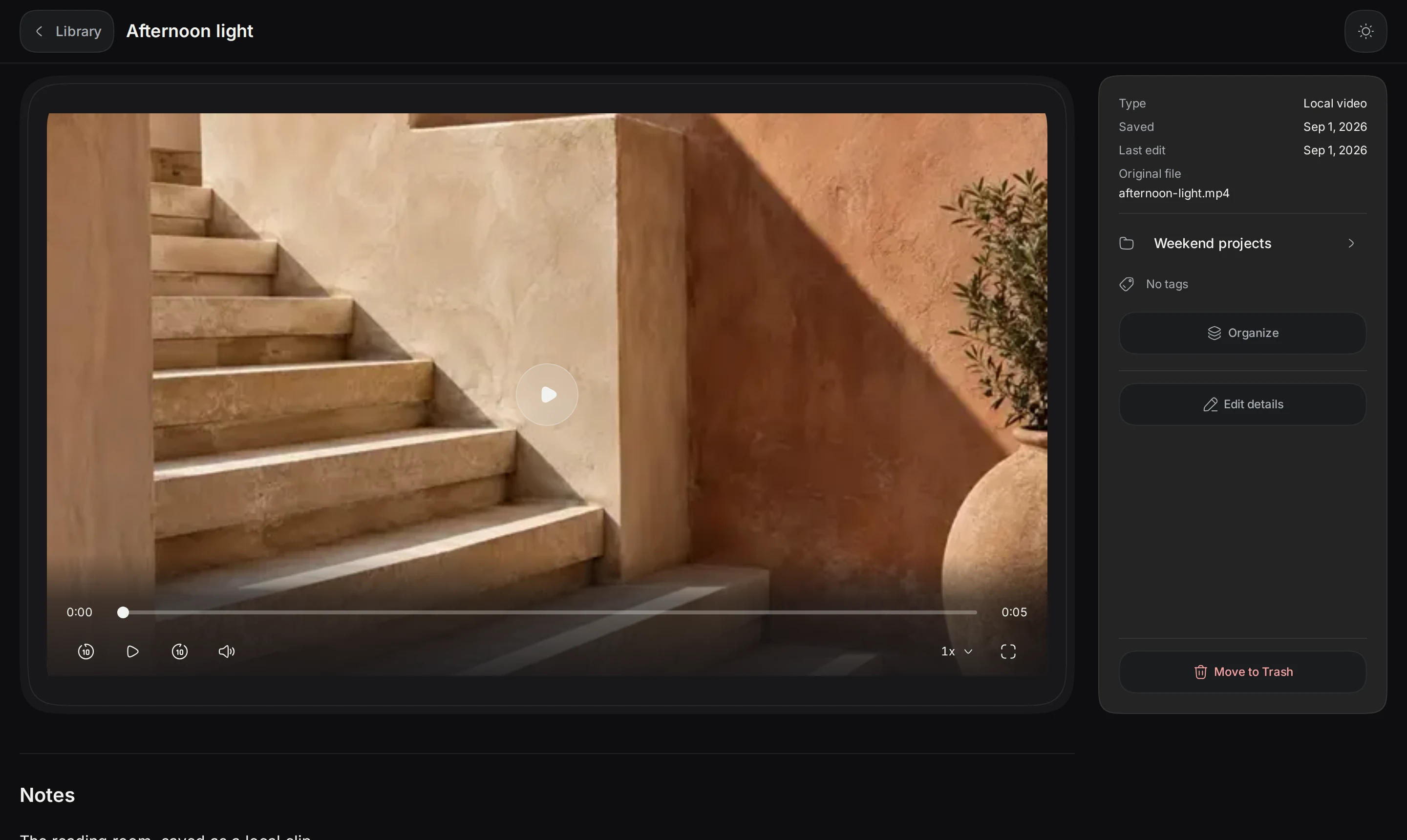
Supported files are MP4 and WebM, up to 100 MiB each. Playback needs a browser that supports the file codec.
A video website link saves only the address. It does not download the video or create a transcript.
- Open Save item.
- Select Add files.
- Select the video file.
- Add a title or note if needed.
- Select Save.
- Open the saved item to play it.
Back up images and videos
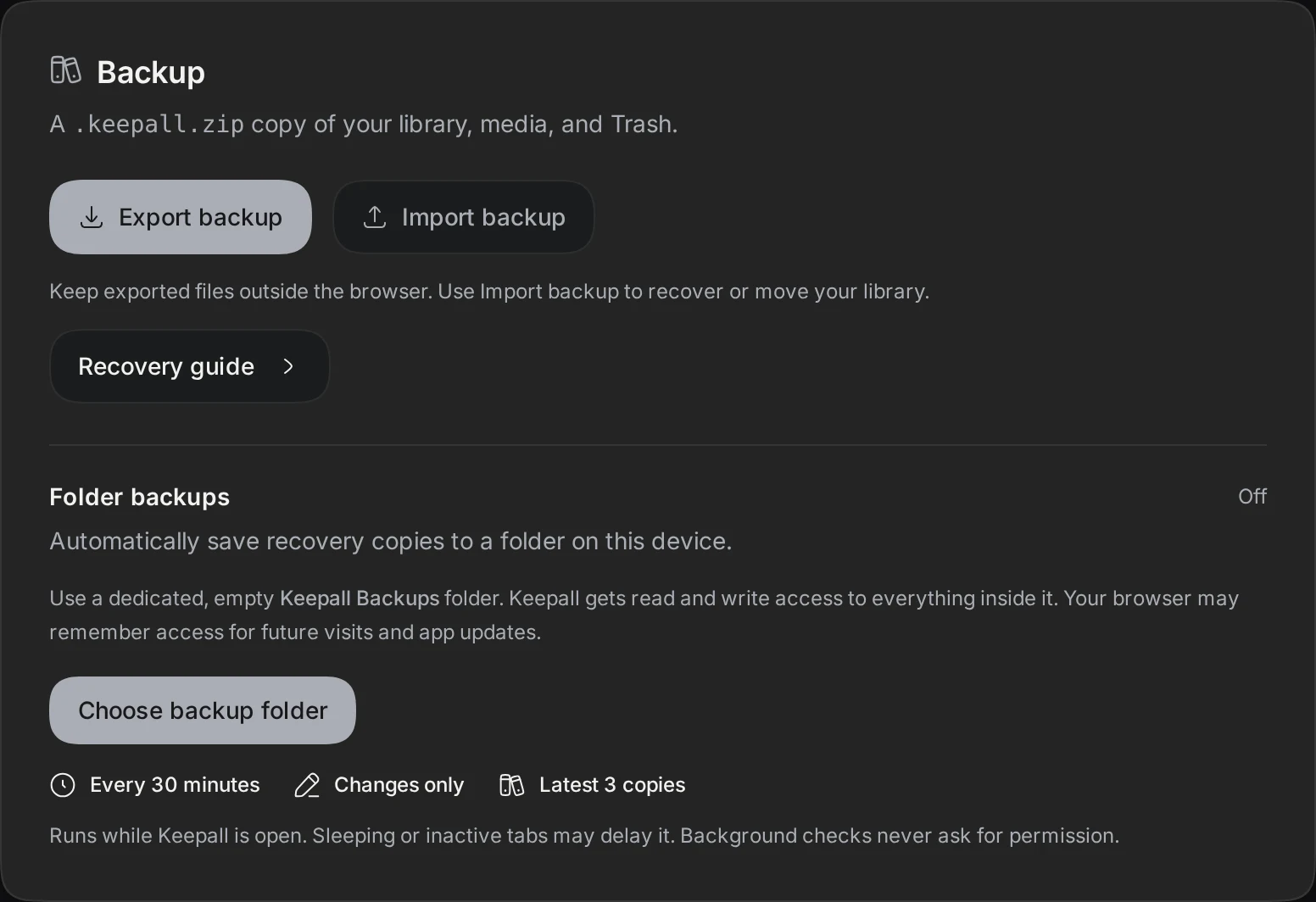
Keepall ZIP backups include saved image and video files. The library otherwise depends on storage in the current browser.
- Export a backup before clearing site data or changing devices.