


Assign a collection
A collection groups related items, such as recipes or project research. Items without a collection appear in Unsorted and stay there until you organize them.
You can assign a collection when saving or later. Dragging library items onto a sidebar collection also moves them.
- In Save item, enter a name in Collection.
- Select Create collection.
- Select Save.
Browse collections
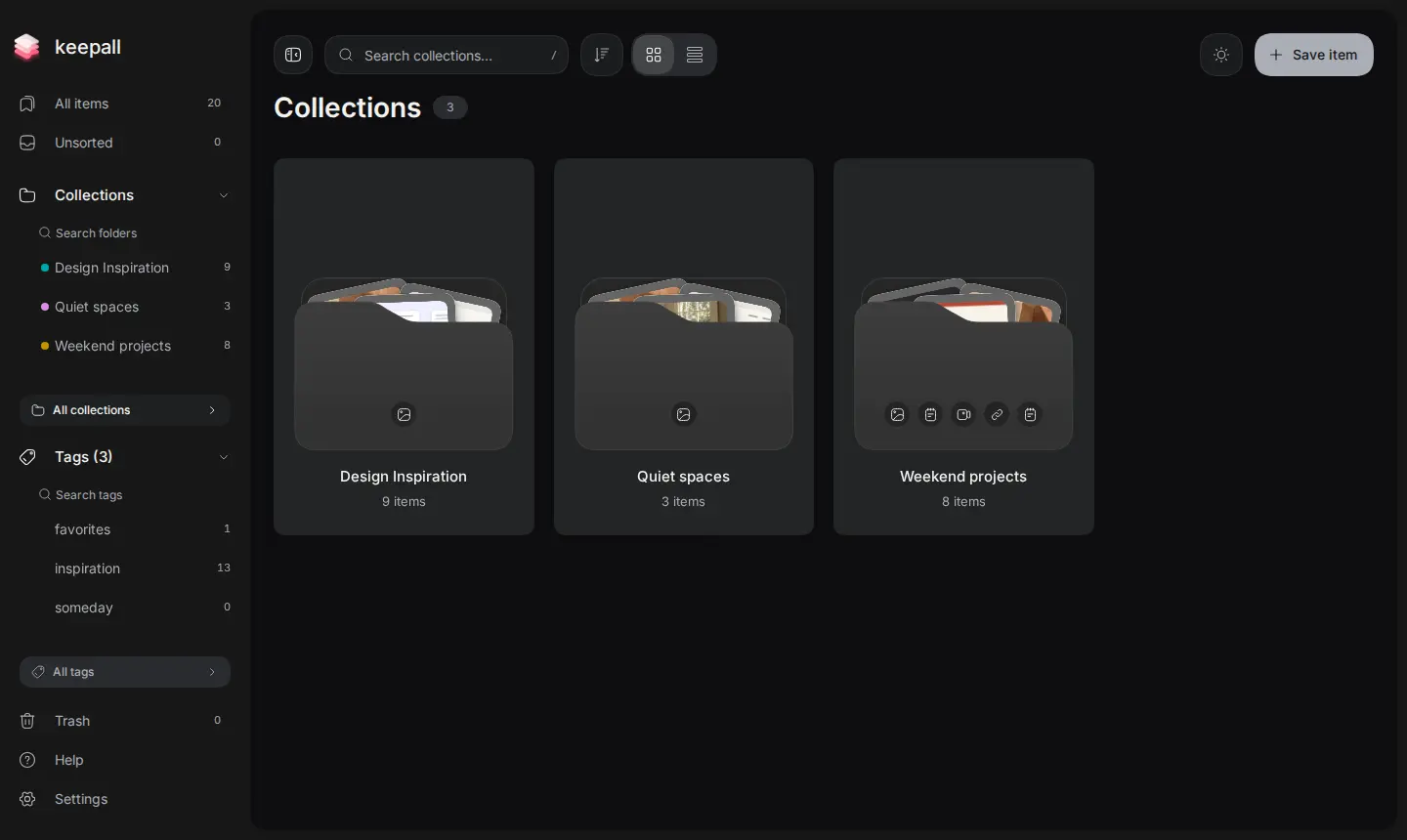
All collections shows folder previews. Its search finds collection names. Grid and List change how the folders appear.
Selecting several collections allows deletion together. The confirmation shows what happens to their items and where those items will go.
- Select All collections in the sidebar.
- Open a folder to see its items.
- Before deleting collections, check the confirmation and destination options.
Review Unsorted
Review Unsorted includes every item without a collection. Library search and type filters do not limit this review.
Apply changes saves the collection and moves to the next item. Tags apply immediately and do not remove an item from Unsorted.
Back and Next browse without assigning a collection. Delete opens a Move to Trash confirmation and advances after confirmation.
Undo reverses the last collection, tag, or Trash change and returns to that item. Back and Next do not add an Undo entry.
Undo stays available until review closes, including after the last item. Tab moves between controls. Escape closes review.
- Open Unsorted.
- Select Review Unsorted.
- Select or create a collection.
- Select Apply changes.
Browse tags
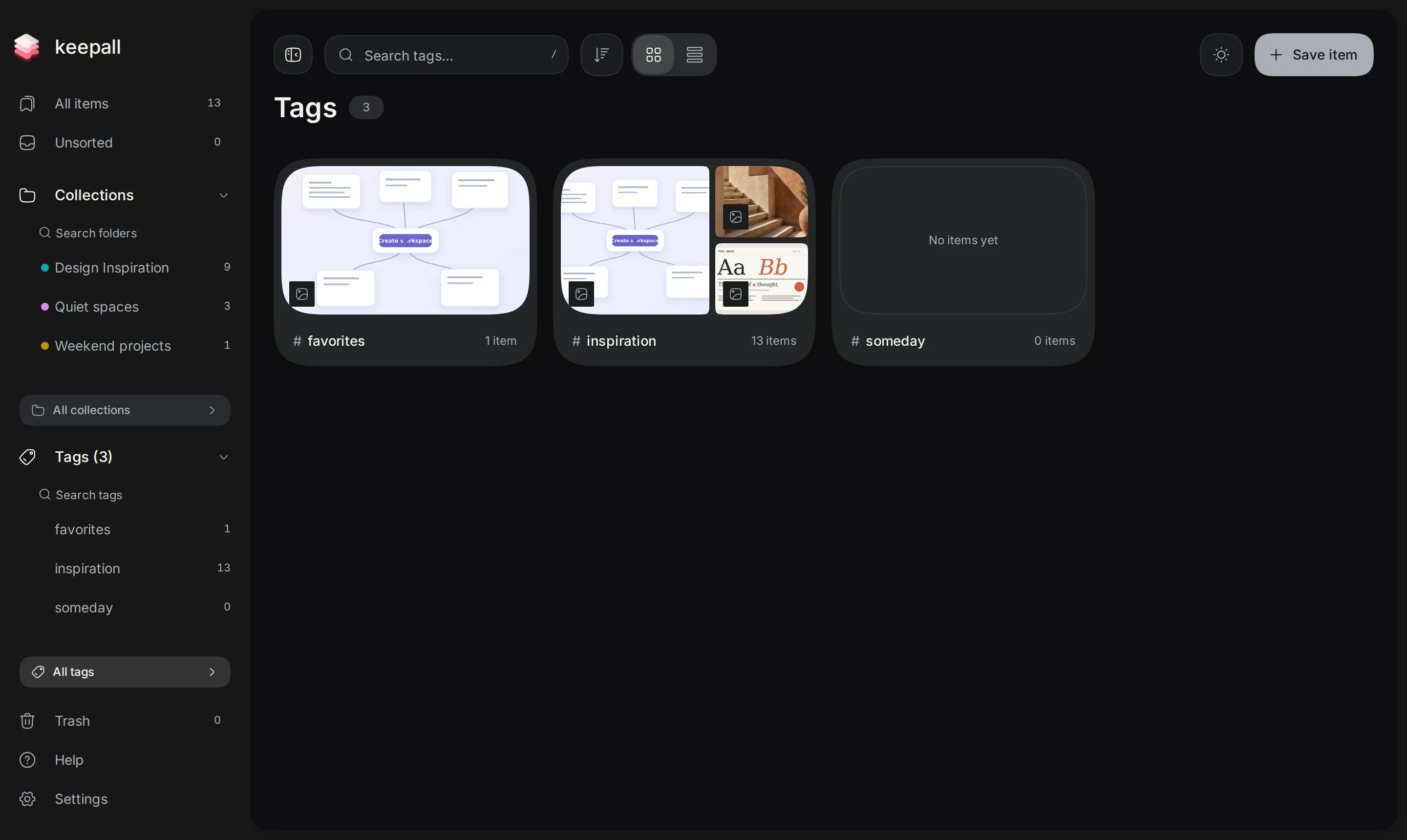
All tags shows previews and item counts. Its search finds tag names. Grid and List change how the tags appear.
Deleting a tag removes that tag from items. It does not delete the items.
- Select All tags in the sidebar.
- Select a tag to see matching items.
Change app shortcuts
Default shortcuts are Alt + K for Save item and Alt + G for Grid or List. On Mac, use Option instead of Alt.
The default Search shortcut is /. The default Preview results shortcut is Space. Assigned keys appear beside actions or in tooltips.
A shortcut can use a letter, number, punctuation mark, or function key. Optional modifier keys include Ctrl, Shift, Alt, Cmd, and Windows.
The / key can come from the main keyboard or number pad. Keepall rejects duplicate assignments. Browsers and operating systems can reserve some shortcuts.
In the recorder, Escape cancels, Tab moves focus, and Enter confirms. Cancel also discards a change. Reset to defaults restores all original assignments.
App shortcuts pause in typing fields, editors, and dialogs. Preferences stay on this device and in backups. Replace restores backup assignments. Merge keeps current assignments.
The Chrome extension has separate shortcut settings.
- Open Settings.
- Select General.
- Find App shortcuts.
- Select Change beside the action.
- Press the shortcut keys together, or select Use default.
- Check the displayed shortcut.
- Select Confirm shortcut.
Pin items and collections
Pinned collections appear in the sidebar with an adjustable order. Pinned items appear first inside their collection.
Selection controls can move several items, change their tags, or move them to Trash.
- Before moving selected items to Trash, check the confirmation.
Search saved items
Library search includes titles, notes, tags, saved articles, document contents, and recognized image text.
The current collection, tag, and item type limit the search. All collections and All tags search names instead of item contents.
Restore items from Trash
Move to Trash requires confirmation. It removes an item from normal library results. Undo restores it after the move.
Trash has its own search. Restore selected can restore several selected items.
Delete permanently removes one item after confirmation. Empty Trash removes all items in Trash after confirmation. Recovery then requires a backup that contains those items.
- Open Trash in the sidebar.
- Find the item.
- Select Restore in its menu.
- Before permanently deleting items, export a backup if you might need them again.