

Add Keepall Capture to Chrome
Keepall Capture works in Chrome on a computer. It saves without an open Keepall tab.
- Open the Chrome Web Store link below.
- Select Add to Chrome.
- Read the permission message.
- Confirm installation.
- Open Chrome's Extensions menu.
- Pin Keepall Capture.
Right-click actions and save confirmation tools need Keepall Capture 0.2.0 or later. Chrome's Manage extensions page shows the installed version and available updates.
Save a page
New links appear in Unsorted. Saving an existing link again keeps its collection and tags.
Chrome's settings pages and other protected browser pages cannot be saved with the extension.
- Open the website.
- Select the Keepall icon in Chrome's toolbar.
- Wait for the saved confirmation.
- Open Keepall in the same Chrome profile.
Save a link, image, or selected text
Save to Keepall uses the content under the pointer. A link saves its destination. An image saves its file and source address.
Selected text becomes a note on the source link. Chrome can request website access before an image download.
- For a link or image, right-click it.
- For text, select the passage before you right-click it.
- Select Save to Keepall.
- Wait for the saved confirmation.
For an existing source link, selected text adds to its note. An identical complete passage does not add twice. A linked image saves as an image.
Add details before saving
The save panel accepts a title, personal note, collection, and tags. Notes can use plain text or Markdown.
Browse all searches the full collection or tag list. The panel can also create collections and tags. For an existing link, Save updates its details.
Closing the panel keeps its draft in that tab. Discard draft removes it. Reloading the page or closing the tab also removes it.
Notes with local image attachments need the editor in Keepall.
- Press Alt + K on Windows or Linux, or Option + K on Mac.
- Change the title or note if needed.
- For formatted notes, turn on Markdown.
- Select a collection or tags if needed.
- Select Save.
- Wait for the saved confirmation.
Open, organize, or undo a save
The saved confirmation has Open in Keepall and Organize actions. Organize assigns a collection.
Undo appears briefly for a new item. It cannot remove an item that you have since edited, organized, or pinned.
- To remove an item after the confirmation closes, select Move to Trash in Keepall.
Allow image downloads
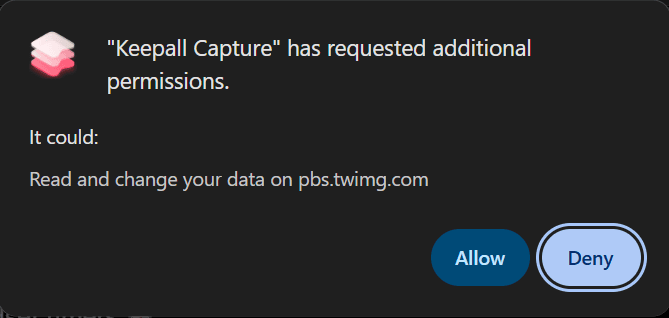
An image can come from a different website than its page. Chrome can request access to that image host before Keepall downloads it.
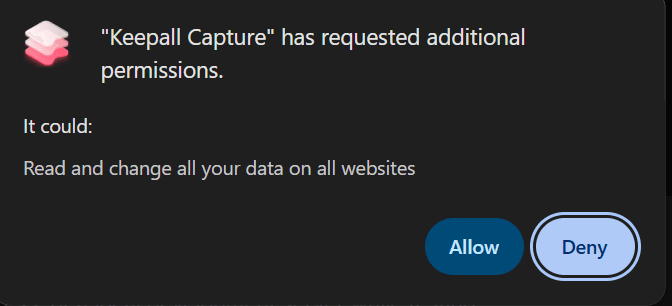
Access for one website is the recommended choice. Image access in Options also offers optional access to all websites.
Chrome's permission message describes the access it grants. The Image access section links to Chrome's controls for changing access.
Supported images are PNG, JPEG, GIF, WebP, and AVIF, up to 20 MiB each. A website can still block a download.
- If Chrome requests access, read the website address and permission message.
- To download the image, select Allow.
- To manage image access, right-click the Keepall toolbar icon.
- Select Options.
- Select Image access.
Find extension saves
The extension normally saves to www.keepall.app in the same Chrome profile. Profiles such as Personal and Work have separate libraries.
Check connection tests whether the extension can reach the selected library. It does not sync libraries.
- Open Keepall in the Chrome profile used for the save.
- To check the destination, right-click the extension icon.
- Select Options.
- Select General.
- Select Check connection.
Fix a failed save or shortcut
Another extension can use the same shortcut. Chrome controls extension shortcuts separately from app shortcuts.
A missing item can be in a different library address or Chrome profile. New links normally appear in Unsorted.
Image downloads need the correct website permission and a supported file within the size limit.
- If the shortcut fails, open Options.
- Select Saving.
- Select Change shortcut.
- Assign an available shortcut in Chrome.
- If saving fails, open Keepall while online.
- In extension Options, select General.
- Select Check connection.
- If Restore library access appears, select it.
- Retry the save.