


Choose the app or extension
Installing Keepall adds an icon for the library. Keepall Capture is a separate Chrome extension for saving content from websites on a computer.
You can use the app, the extension, both, or the website alone.
Install with Chrome on a computer
If the install icon is absent, Chrome's menu has Cast, save, and share, then Install page as app.
- Open www.keepall.app in the Chrome profile used for the library.
- Select the install icon in the address bar, or Install page as app in the menu.
- Confirm installation.
- Open Keepall from its new icon.
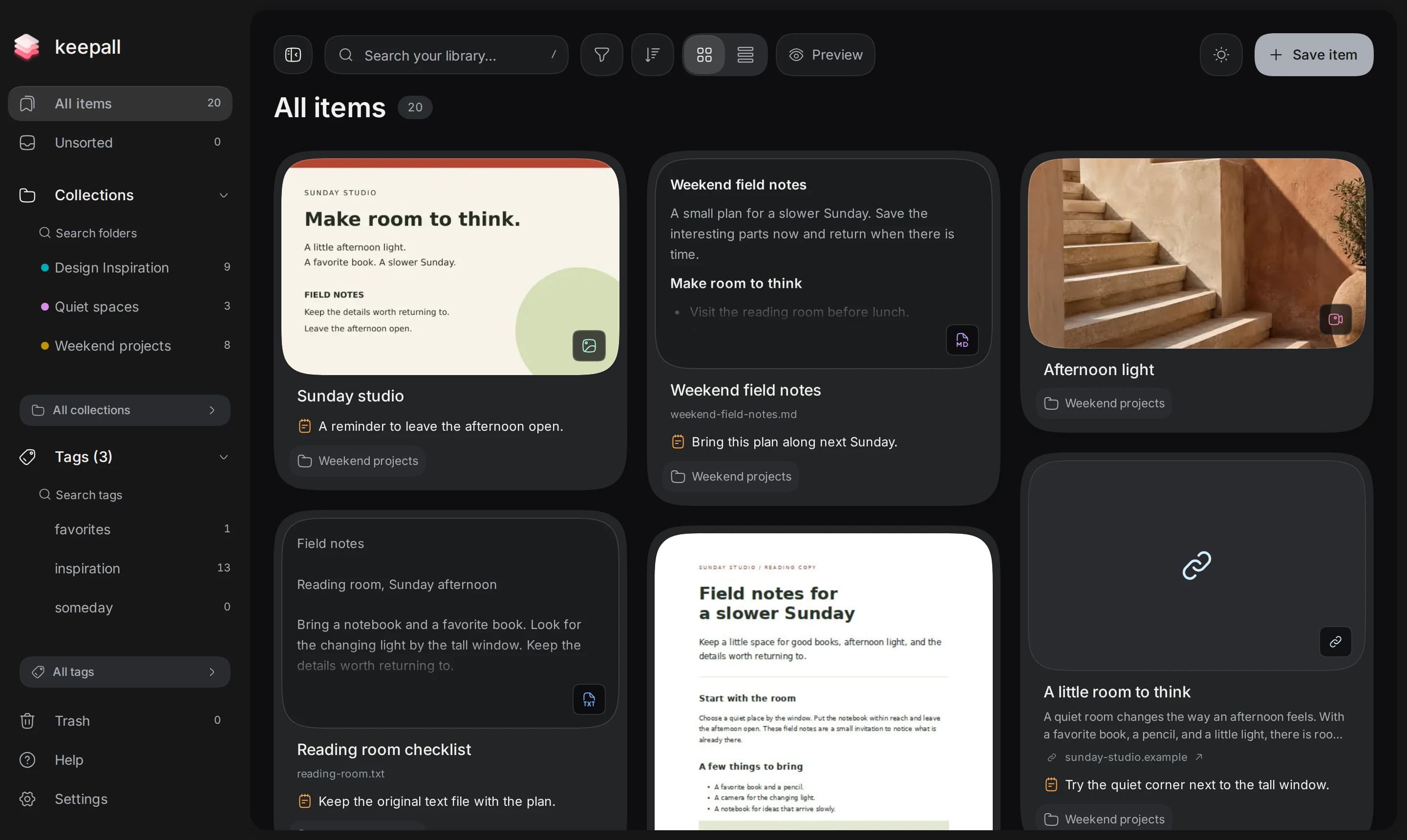
Install with Chrome on Android
Menu labels depend on the Chrome version. Alternatives include Add to Home screen and Install app.
- Open www.keepall.app in Chrome.
- Open Chrome's menu.
- Select Install and create shortcut.
- Select Install.
- Complete the installation prompts.
- Open Keepall from its new icon.
Install with Safari on iPhone or iPad
The Home Screen app has a separate library from Safari. Installation does not copy existing saves.
For existing saves, a backup export from Safari can transfer the library to the Home Screen app.
- Before saving items, open www.keepall.app in Safari.
- Open Share from the toolbar or page menu.
- Select Add to Home Screen.
- If Open as Web App appears, turn it on.
- Select Add.
- Open Keepall from its Home Screen icon.
Transfer an existing library
A different browser, profile, device, or site address has a separate library. The iPhone and iPad Home Screen app also has separate storage from Safari.
Installation does not sync libraries. A backup import transfers a copy once.
- Before switching, export a backup from the library with your saves.
- If the new app has an empty library, import that backup.
- Check the imported items before deleting the original copy.