


Save a link
Save a page that you want to read again.
The default Save item shortcut is Alt + K on Windows or Linux, or Option + K on Mac. Settings, General, App shortcuts has the shortcut controls.
- Copy the page address.
- Open your Keepall library.
- Select Save item.
- Paste the address.
- Add a note, collection, or tags if needed.
- Select Save.
- To change the title later, select Edit in the item menu.
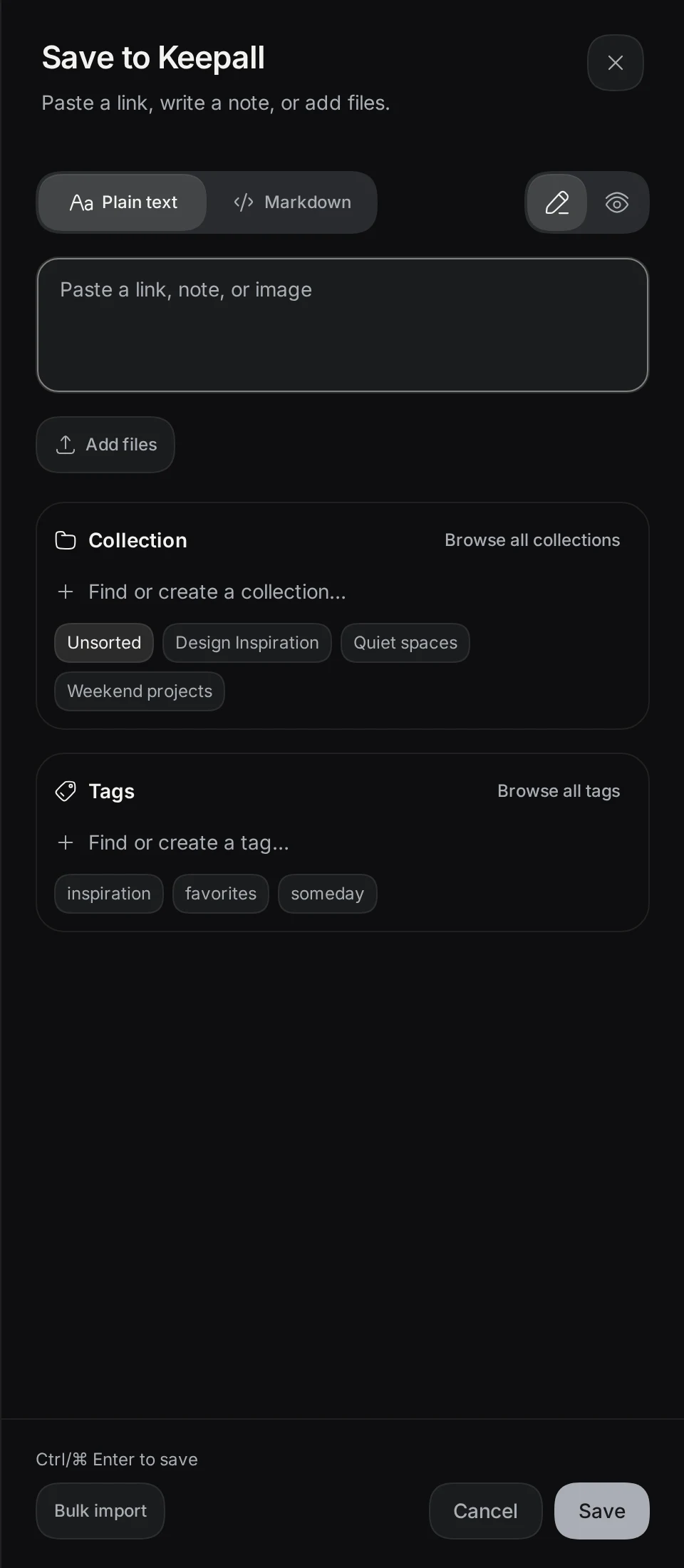
New links appear in Unsorted unless you select a collection. Keepall requests a link preview while online. A failed preview does not remove the saved link.
Save notes and files
Save item also accepts notes, pasted images, and files from your device. Supported documents are PDF, Markdown, and text files.
Notes start as plain text. Markdown adds headings, lists, and other formatting. Each saved item can also have a separate personal note.
Find a saved item
Search finds words in saved items. Collections, tags, and item types limit the results. Grid and List give you different views of the same results.
A link title can open the original website. Open full item shows saved details and articles. Move to Trash keeps an item until you delete it permanently.
- To browse an item without leaving the results, select Preview.
- To read saved details, select Open full item in the item menu.
Save from Chrome
Keepall Capture saves pages from Chrome on a computer. Installing Keepall adds an app icon for the library. Both are optional.