


Collect the sources for one question
Planning a reading room might involve an article about lighting, a PDF with measurements, and a Markdown plan you wrote yourself. Keep them in one project collection so you can compare the source material with your decisions.
Start with a note naming the question, such as "Where should the desk go, and what lighting will it need?" In Save item, enter a collection name, choose Create collection, then save. Choose that collection for the sources you add next.
Save the article you need to read
- Choose Save item and paste the page address.
- Select your project collection, add a note about why this source matters, then save.
- Open the saved link's menu and choose Open full item.
- Choose Save for offline and wait for the saved article to appear.
Article capture needs a connection. It requests the public page through Keepall's server and keeps a readable copy in your library. Some pages require a login or block capture. If it fails, the link and your note remain saved.
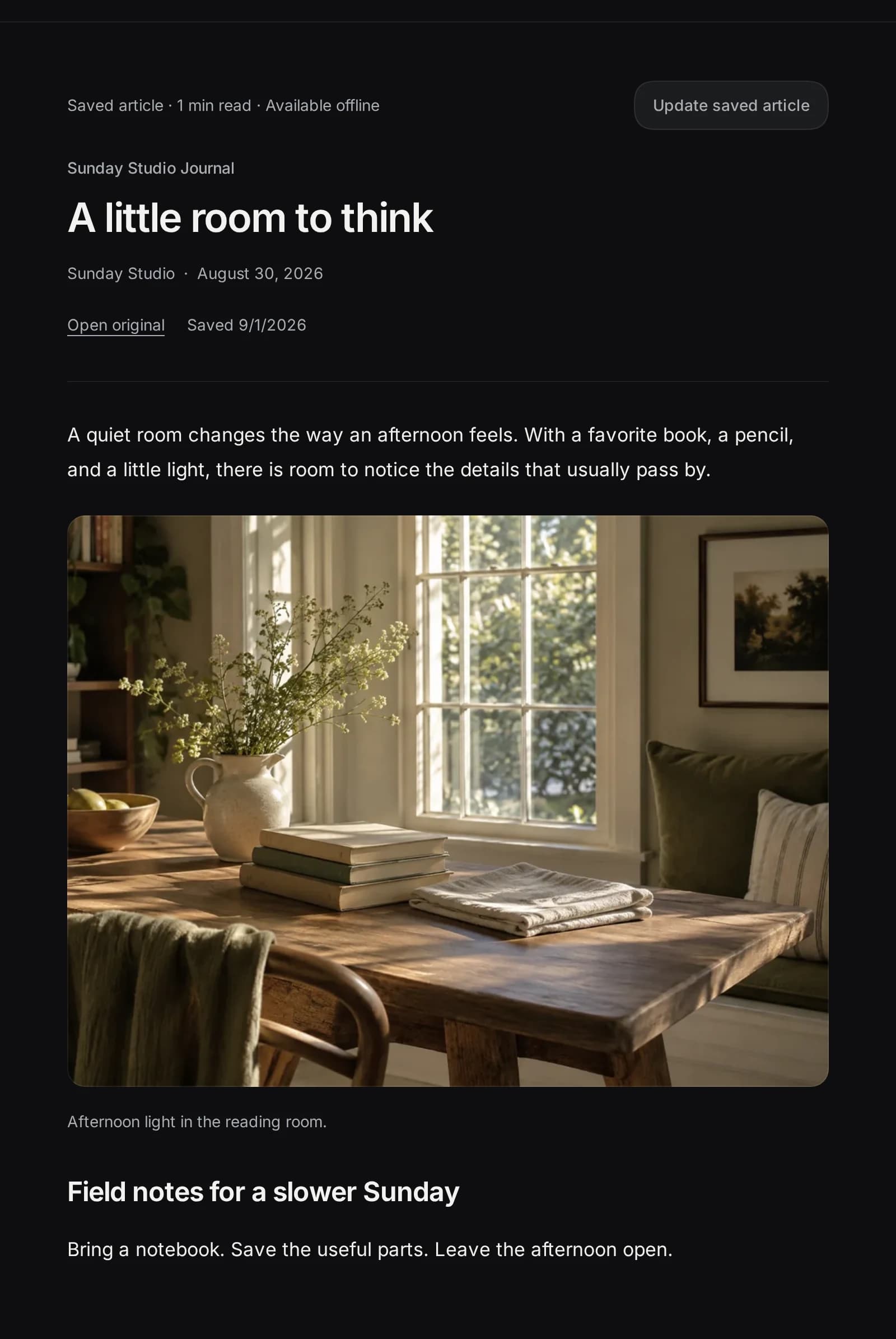
Use the saved-article guide for capture and its limits. A saved article preserves readable content; it does not archive the website's interactive tools or original layout.
Import PDFs and Markdown
Choose Save item, then Add files to select a PDF, UTF-8 text file, or Markdown file. Choose your project collection and save. Use Bulk import for several files or a folder.
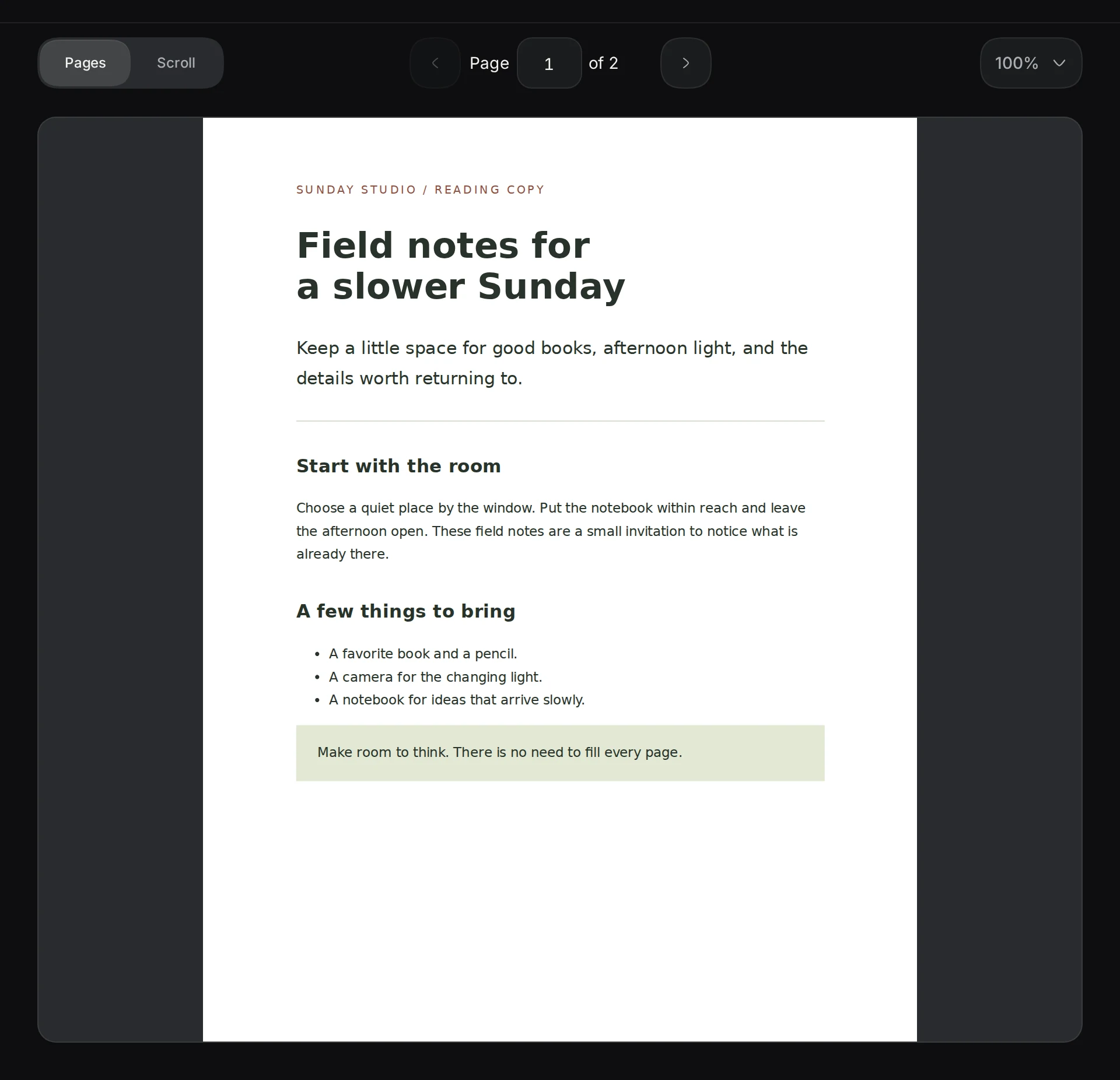
Open a PDF's menu and choose Open full item. Use Pages to read one page at a time or Scroll to read continuously. The zoom menu lets you choose Fit width or a percentage. PDFs with selectable text can be searched; scanned page images can be viewed, but Keepall does not recognize their text.
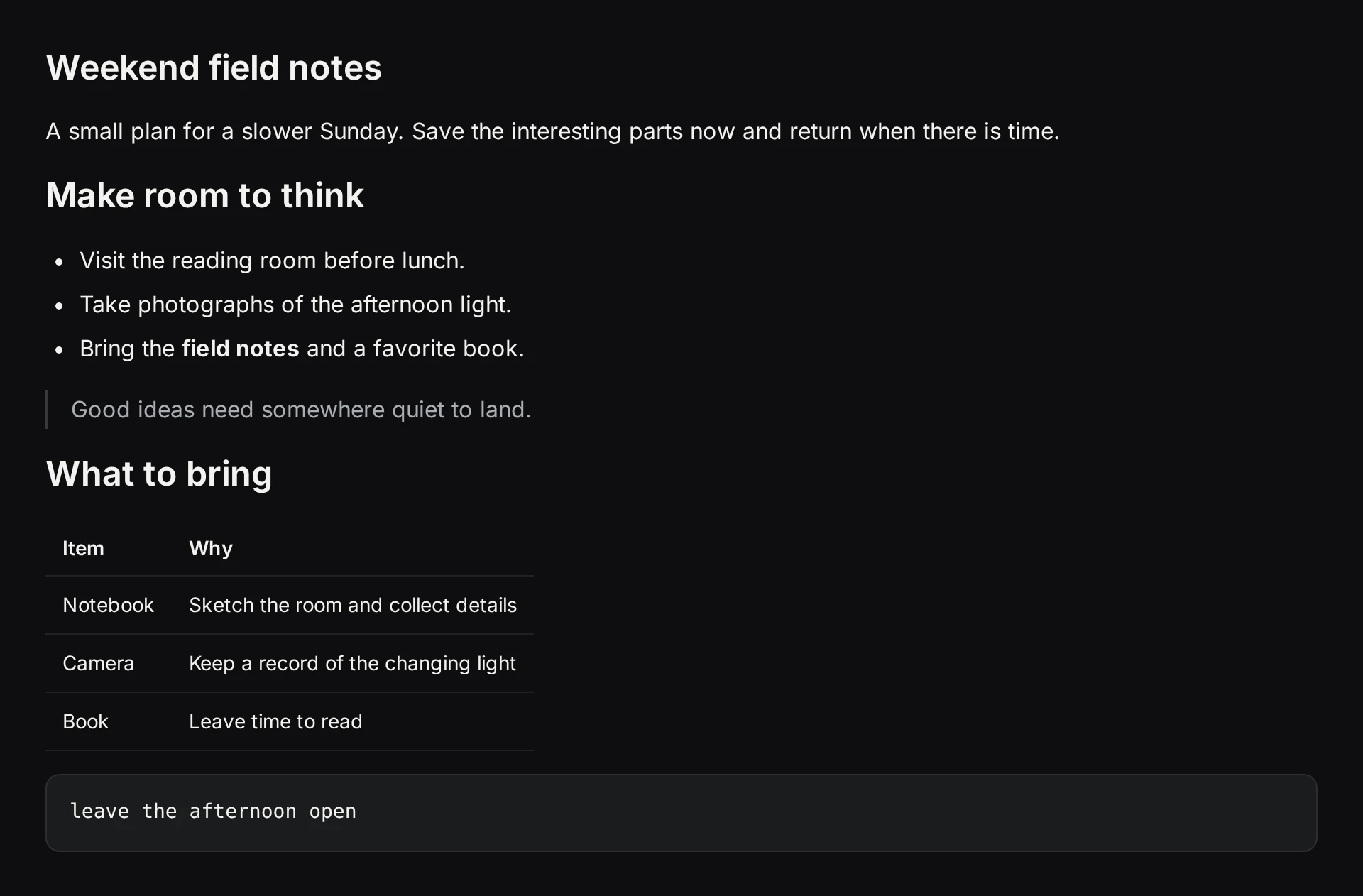
Markdown is useful for a plan you revise as you read. Keepall renders headings, lists, tables, and code. Use Edit to change the saved text. Those edits affect Keepall's copy, while the original file on your device stays unchanged.
The document guide covers file limits. Imported Markdown does not load remote images or embedded HTML.
Keep your conclusions separate
Use an item's Edit action to add a personal note. Describe how the source changes your plan, such as "Check whether the desk lamp reaches the back edge of the table." This note stays separate from the article or document contents.
Keep decisions that apply to the whole project in a standalone note in the same collection. Record the decision, the source that supports it, and any question you still need to answer. Update it after reading rather than copying every passage into it.
See personal notes on saved items and writing a standalone note.
Find a passage and compare sources
Open the project collection and search for words from the passage you remember. Search includes personal notes, saved articles, Markdown, and selectable PDF text. Excerpts show where a match came from. Large files can take longer to search.
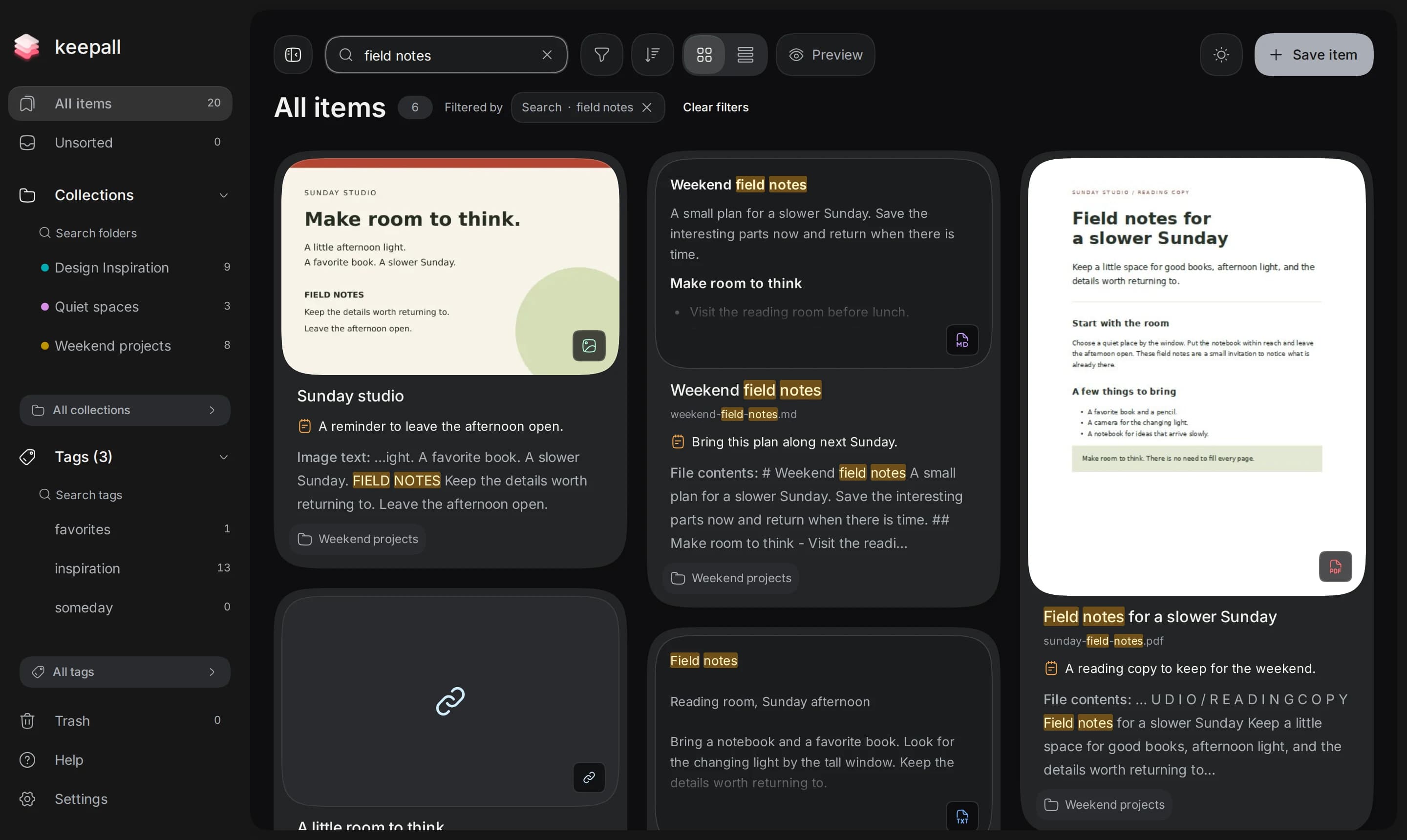
Choose Preview to browse your current results with Back and Next. Notes and documents are readable in preview. For a saved article, choose Open full item to read its text.
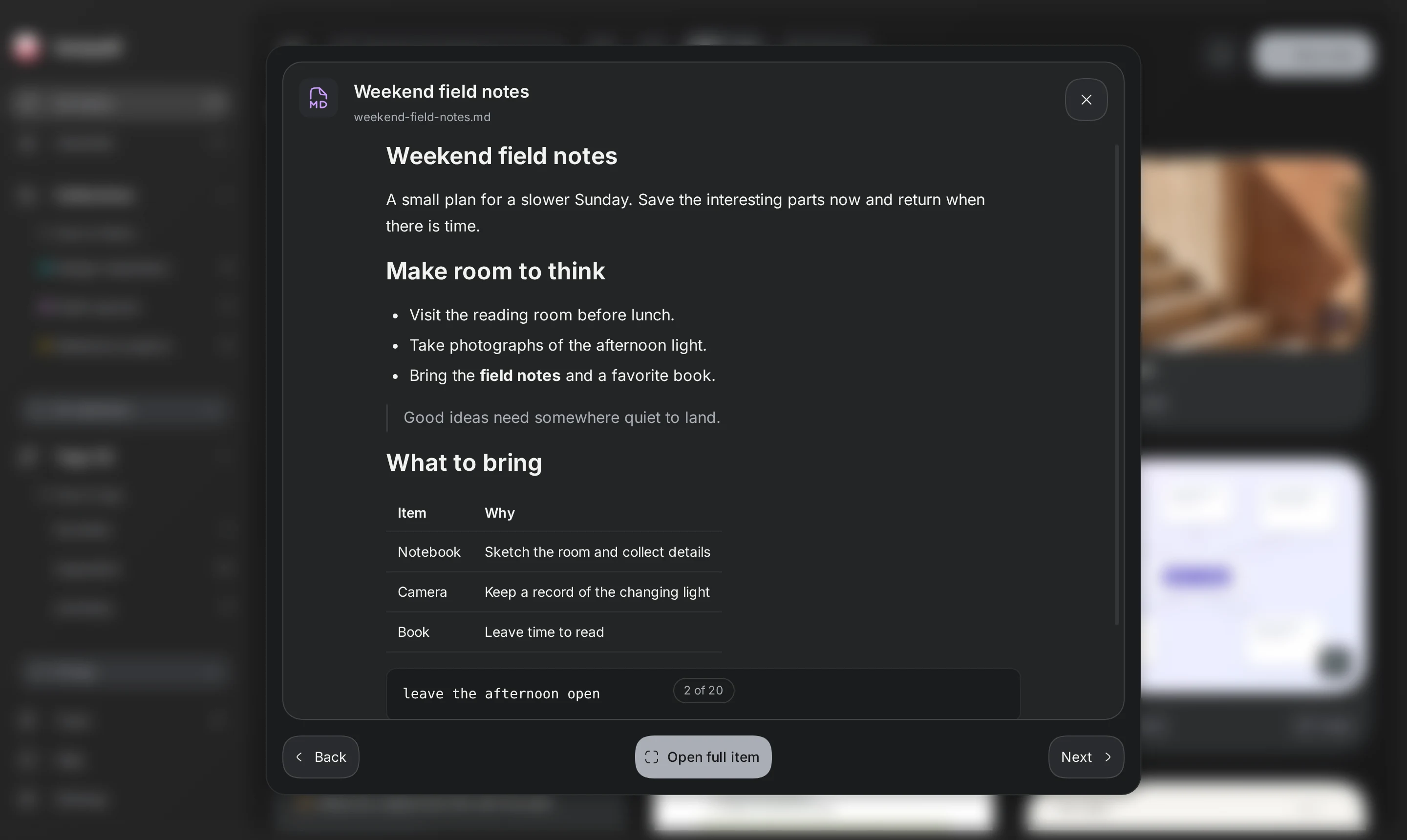
If something is missing, check the collection, tag, and type filters. The search-scope guide explains how to broaden the search, and the preview guide explains which content you can read there.
Back up the research
After importing sources or making important edits, open Settings, choose Storage & backups, then Export backup. Keep the downloaded file outside the app. It includes saved articles, documents and their edits, and your personal notes.
Your library lives in this browser profile on this device. Before moving browsers or clearing site data, follow the backup guide. Importing a backup on another device moves a copy; it does not keep the two libraries in sync.
Open your library