


Start with the decision you need to make
A reference should help you make a decision. Save a page for its readable typography, a screenshot for its navigation, or a photograph for the colors you want to try. Write down the detail that matters.
Before collecting, save a note describing the project, such as "A portfolio with readable, well-spaced case studies." Use that brief to decide which references belong.
Give the project a collection
In Save item, enter "Portfolio redesign" under Collection, choose Create collection, then save the reference. Choose this collection for later saves or move existing items into it. Choose All collections in the sidebar to browse folder previews.
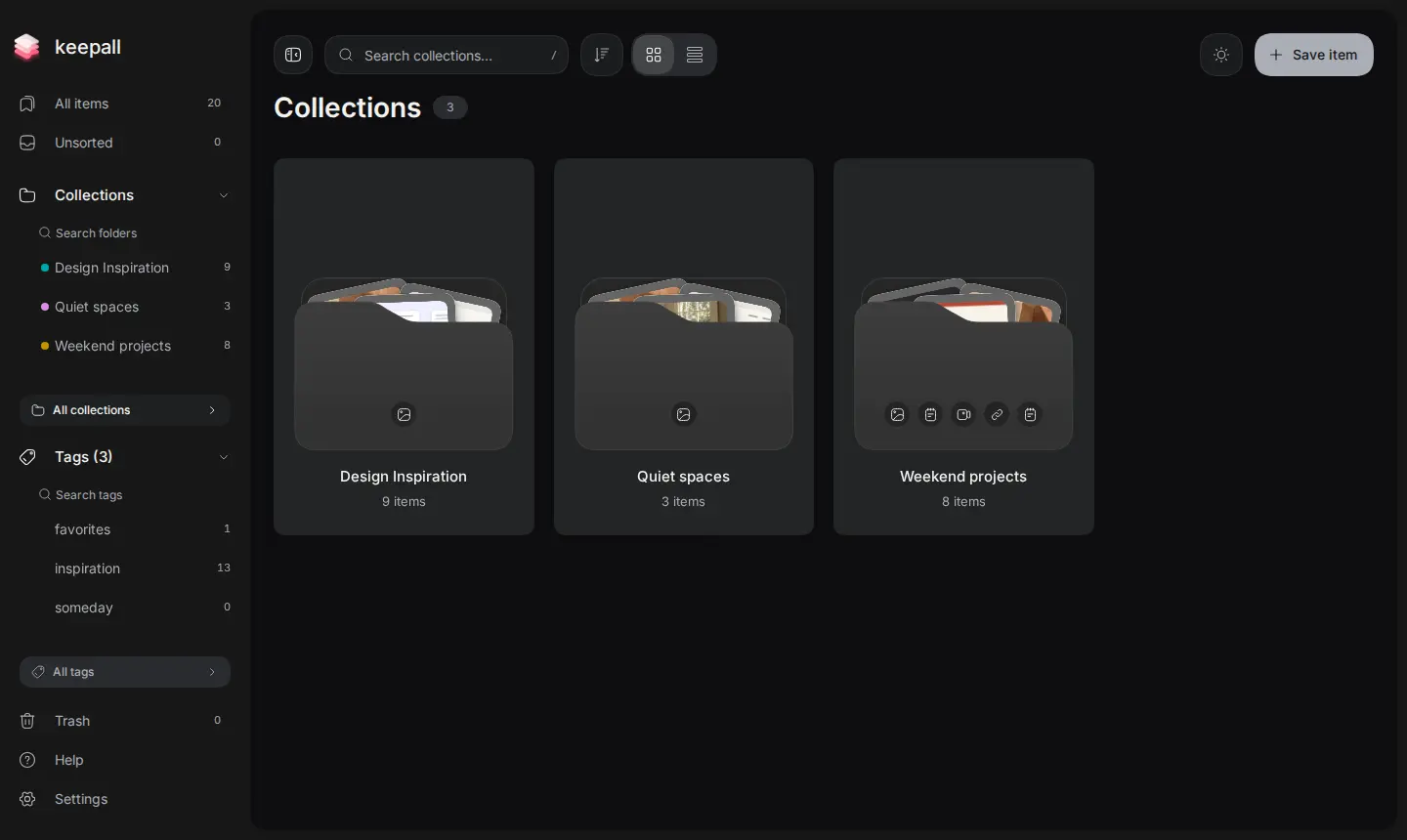
For general research, a broader collection can work. The example below groups layouts, typography, and photographs under "Design Inspiration." Use a project collection when you need to review a specific set.
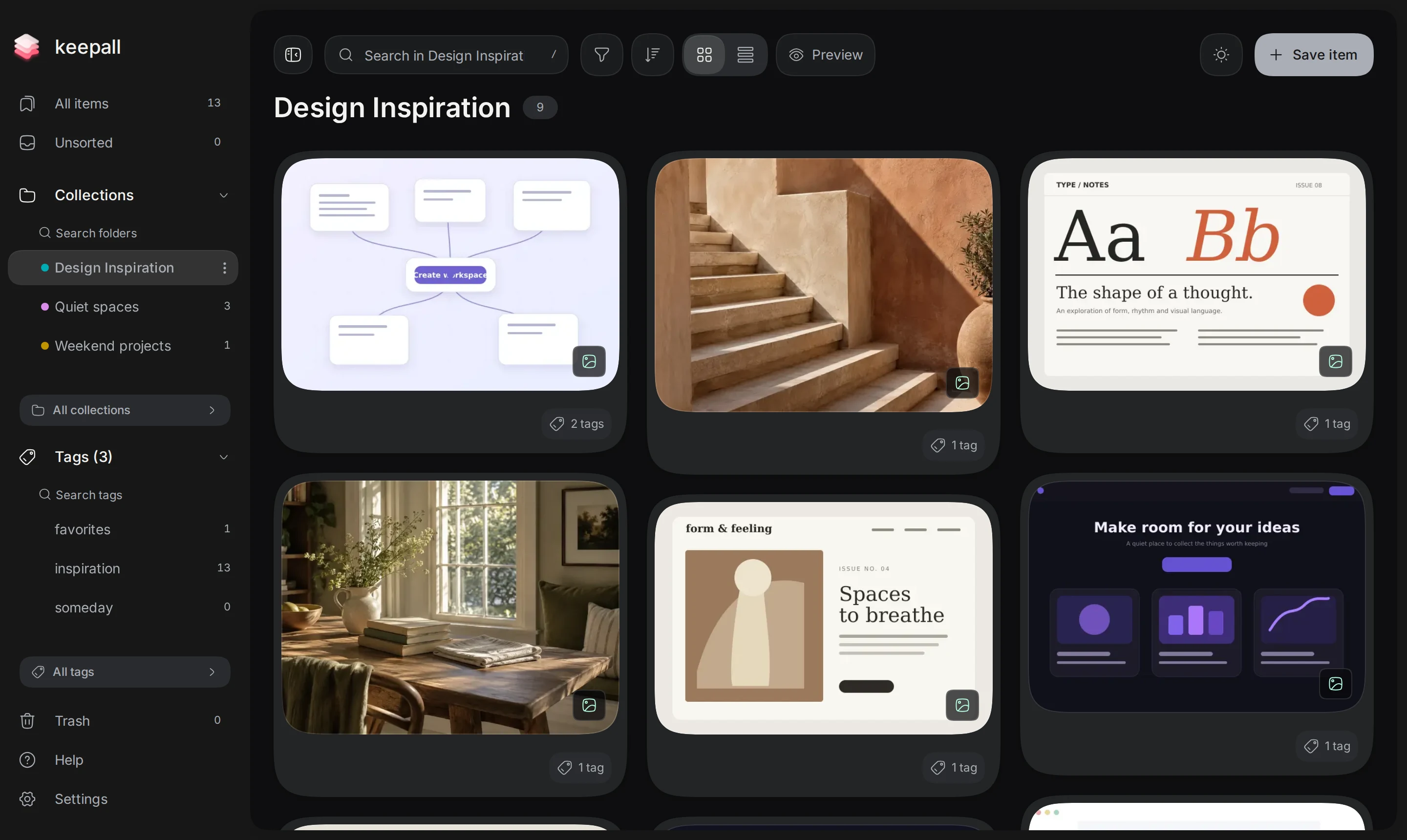
Leave references in Unsorted until you know where they belong. See how collections work.
Save the source and the reason
Save a link to revisit a website. Save an image for a specific composition or detail. Choose Save item to paste a link or an image, or choose Add files for image files. Include a source link so you can return to the original.
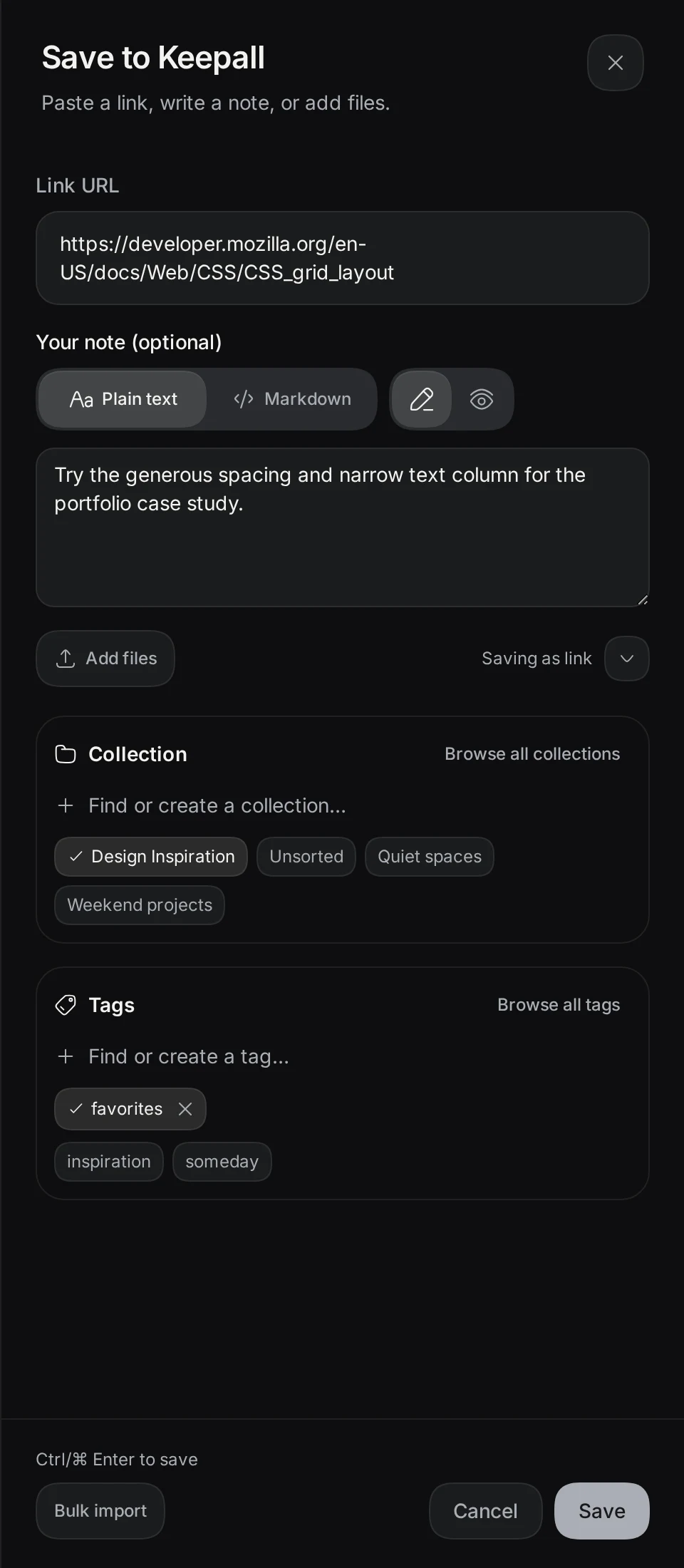
Add a note describing what you noticed. Use a title you would search for. To change it later, open the item's menu, choose Edit, then save your changes.
"The narrow text column makes the long case study easy to read. Try this spacing for the portfolio's project pages."
A short note such as "generous spacing for case study" can be enough. The first-save guide covers links, and the image guide explains saving images and their source.
Use tags for details that repeat
Use a collection for the project and tags for details that apply across projects, such as "typography" or "navigation." A reference can have several tags.
Choose tags you expect to browse. If every reference has "inspiration," a more specific tag may help you find the detail you need.
In an item's three-dot menu, choose Tags to add or remove a tag. You can also choose tags in Save item before saving. Select a tag in the sidebar to return to those references.
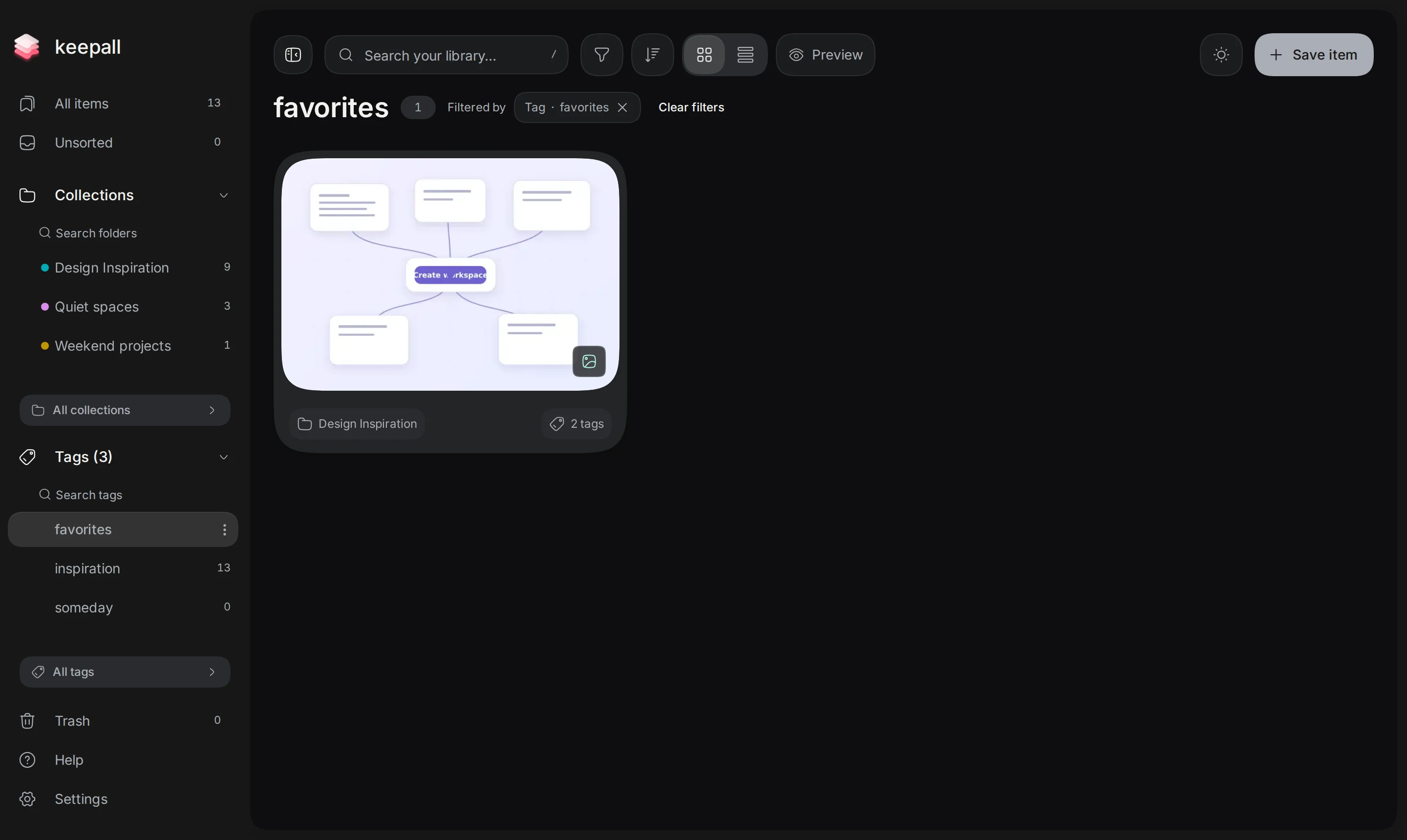
The tags guide shows how to add them and filter your library.
Return with a question
Open the project collection with a question, such as how to lay out the first case-study page. Use Grid view to compare images or List view to read titles and notes.
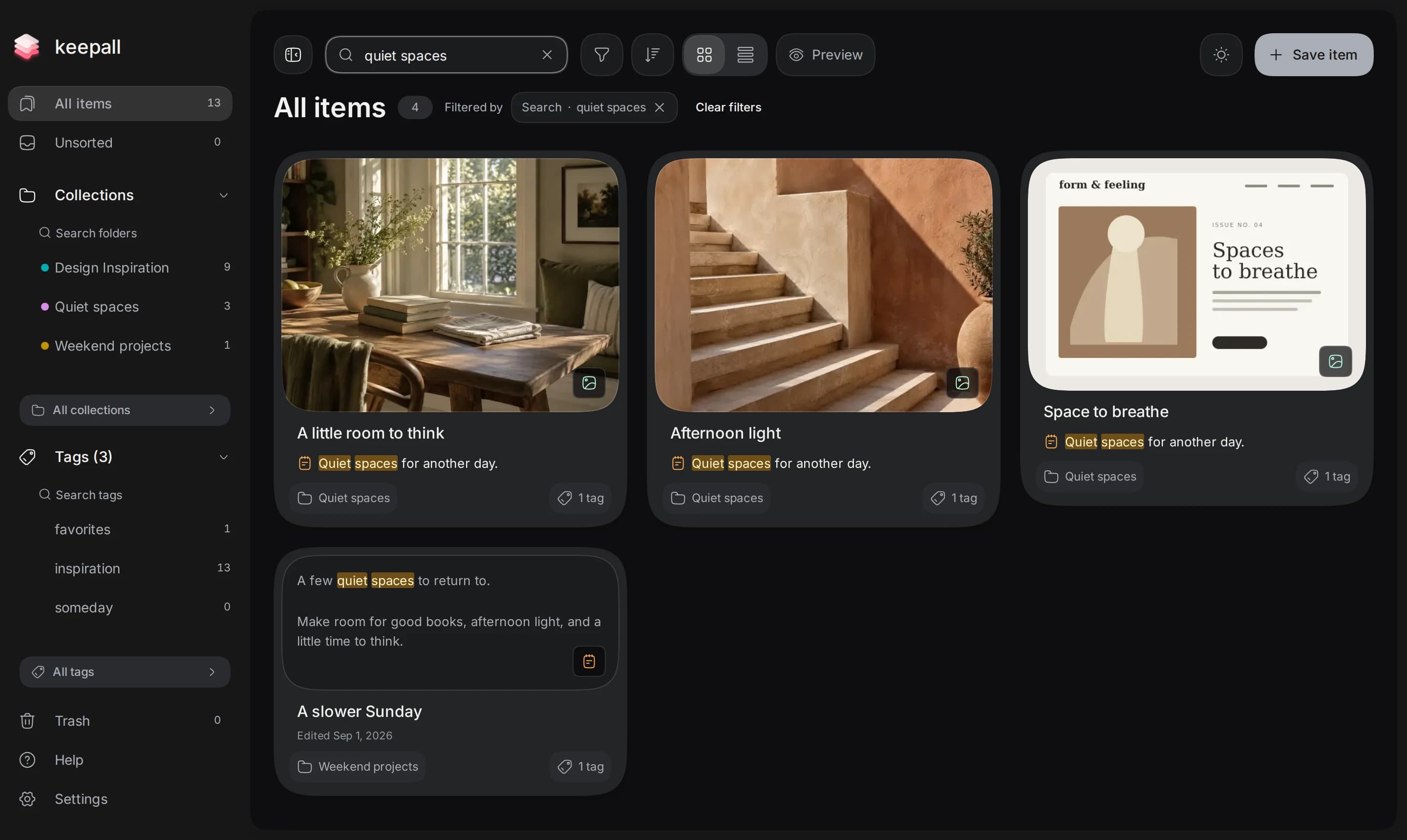
Search for words you remember from your notes. Below, "quiet spaces" finds image notes and a standalone note in different collections.
Choose a detail to try and record why it fits your brief. Test it in your project before collecting more examples.
Use the type filter beside search to narrow the result, or choose a collection or tag in the sidebar. Open the sort control and choose Best match while searching to put title matches first. See search and filters for the details.
Keep a copy of the work
Your references and notes live in this browser profile on this device. After a useful research session, open Settings, choose Storage & backups, then choose Export backup. Keep the downloaded file outside the app. It includes your library data and saved image files.
Follow the backup guide before clearing browser data or moving to another browser.
Open your library