


Start with what you already saved
Old bookmarks can still help with a current project, course, or trip. Start with one folder you want to use again.
Import them into Keepall to add personal notes and browse them alongside saved files and images. The export leaves your browser bookmarks in place.
Export and import your bookmarks
Use your browser's bookmark manager to export bookmarks as an HTML file. Keep that original export until you have checked the import. If you already have important saves in Keepall, download a backup before adding a large batch.
- Open Keepall in the browser profile where you want to keep this library.
- Choose Save item, then Bulk import and Import browser bookmarks.
- Select the HTML export from your browser.
- Choose how browser folders update collections when a link already exists, then choose Import bookmarks.
- Read the added, merged, and skipped totals in Bulk import, then choose Done.
The bookmark import guide covers these steps. A browser bookmark export and a Keepall backup are different files. Use the bookmark import option for the HTML export.
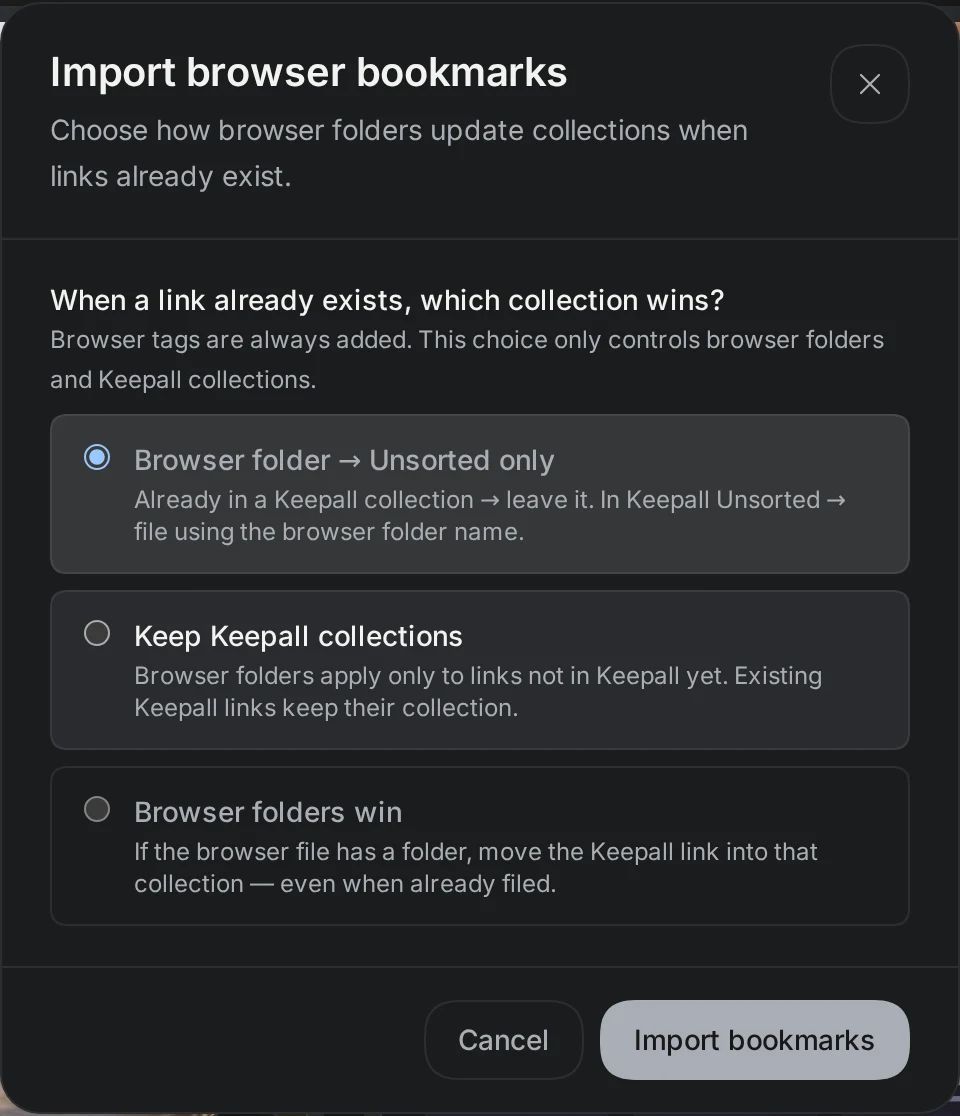
Browser tags are added with every option. New links use their browser folder as a collection. The choice above controls existing links.
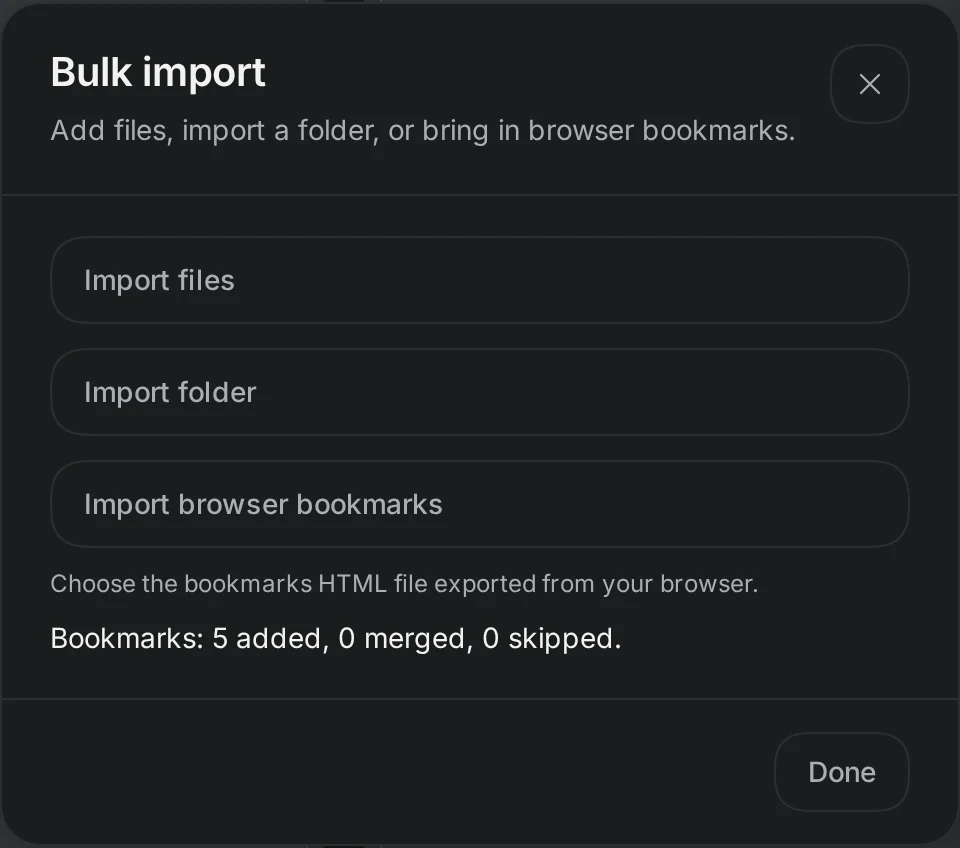
This is a one-time import. Later changes in your browser's bookmark manager do not automatically update your Keepall library.
Check a familiar folder
Pick a folder you know well and open its collection. Check a few titles, then use its source address to confirm the link takes you where you expect. Keep the original file while you investigate anything that looks wrong.
Choose All items to browse the full library or a collection to see one group. Below, the imported Weeknight recipes folder contains three links with their exported titles and source addresses.
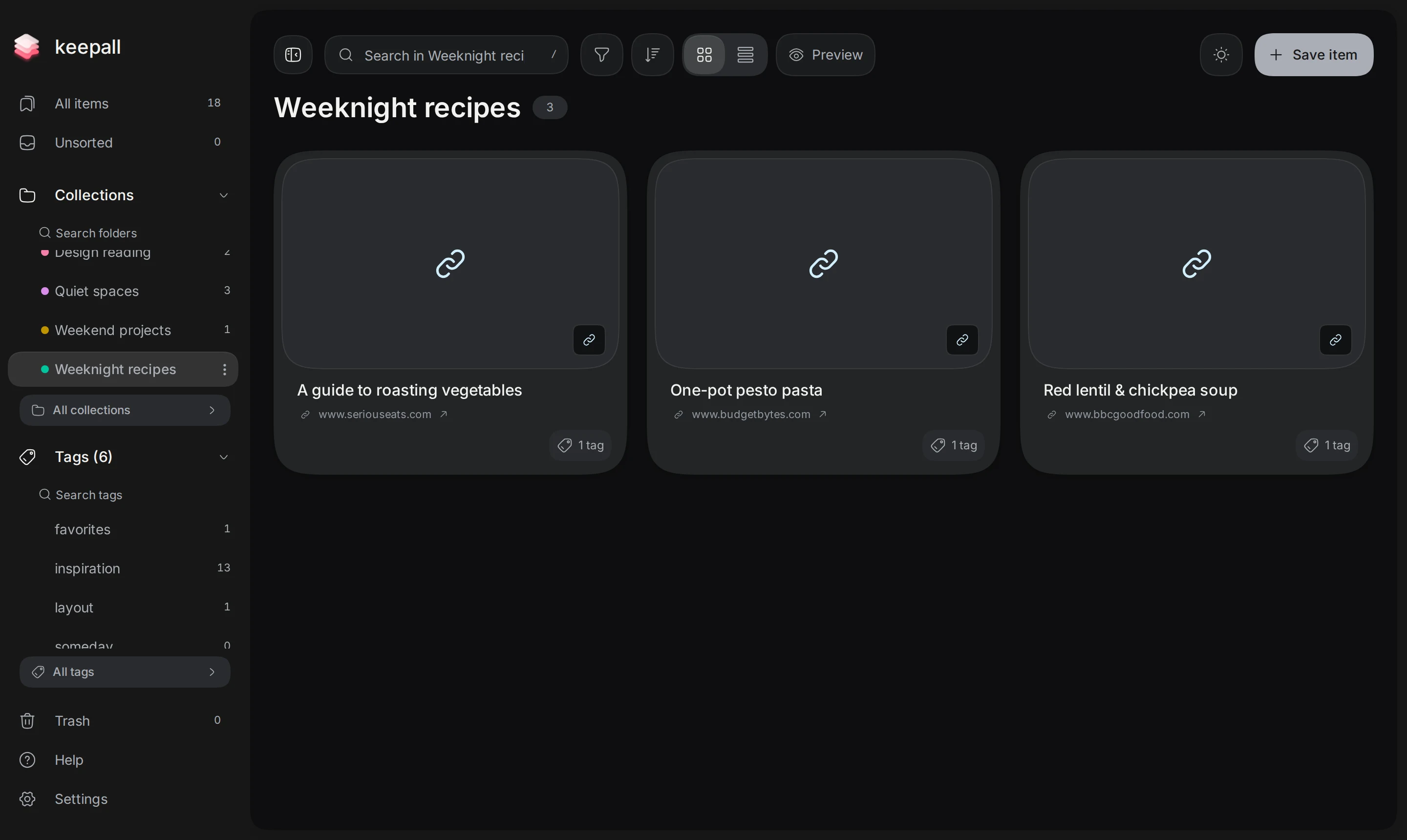
Importing a bookmark saves its address. The original website can change or disappear. Record important details in a personal note, or save a readable article copy when available.
Organize one useful group
Choose a collection you need now. Rename vague titles, move misplaced saves, and add notes to useful links.
Use a collection for the group you want to open together. Use a tag for an idea that crosses those groups. For example, a "weeknight" tag can connect recipes in different collections. Add it only where it helps you choose what to cook.
Items without a collection appear in Unsorted. Leave them there until you know where they belong.
See moving saves into collections and adding tags for the controls.
Add notes you can search
Add a personal note with words you would search for. For a recipe, try "quick lentil dinner, pantry ingredients." For a tutorial, describe the problem it helped you solve.
Try searching those words before reorganizing more items. Keepall searches titles, tags, notes, and source addresses. You can narrow the results by collection, tag, or item type. If an expected save is missing, clear those filters and try again.
Open an item's three-dot menu and choose Edit to add your note, then choose Save changes. In this example, the imported lentil soup link has the note "Quick pantry dinner." Searching "pantry dinner" finds it even though those words are absent from its title.
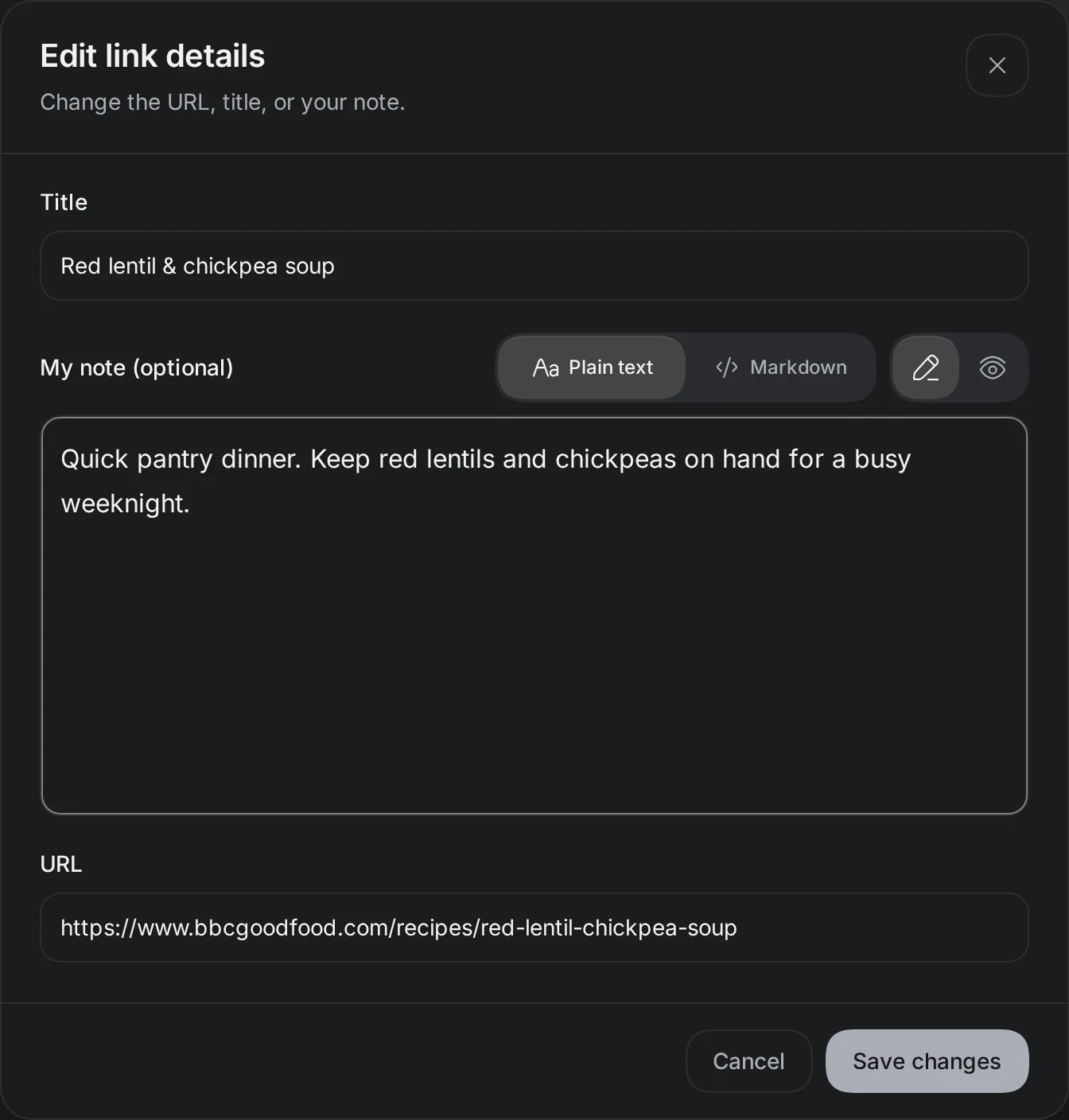
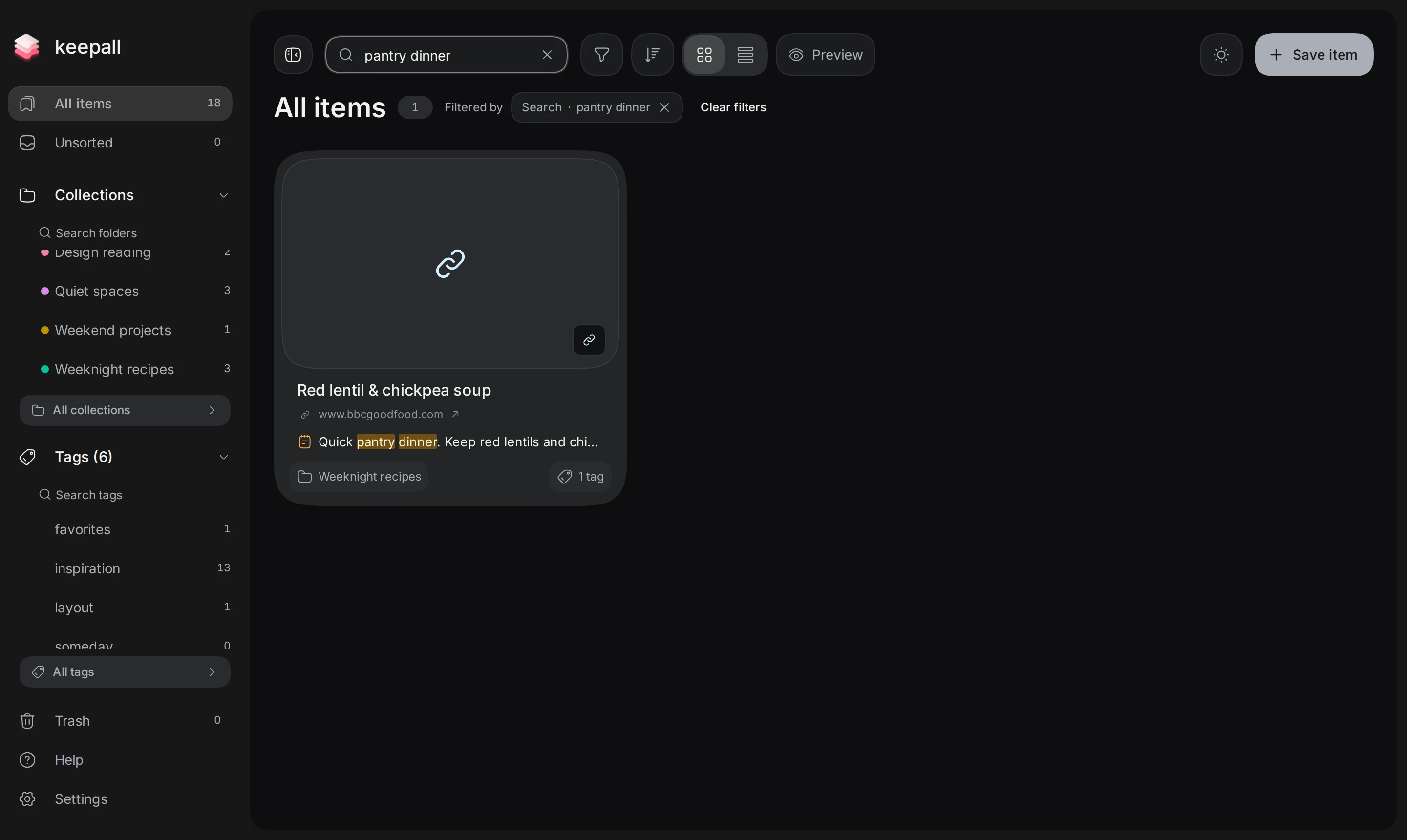
See the search guide to refine results. If an item was hard to find, add the words you searched for to its note.
Back up your library
The imported links and your edits stay in this browser profile on this device. Another browser or device has a separate library. After checking the import and adding useful context, export a Keepall backup.
In Settings, open Storage & backups and choose Export backup. Keep the downloaded file somewhere outside the app. Your original bookmark HTML is still useful, but it does not contain the notes and organization you have added in Keepall.
Follow the backup guide to keep a recovery copy, or the restore guide to move your library to another browser.
Open your library