


Save screenshots you expect to use again
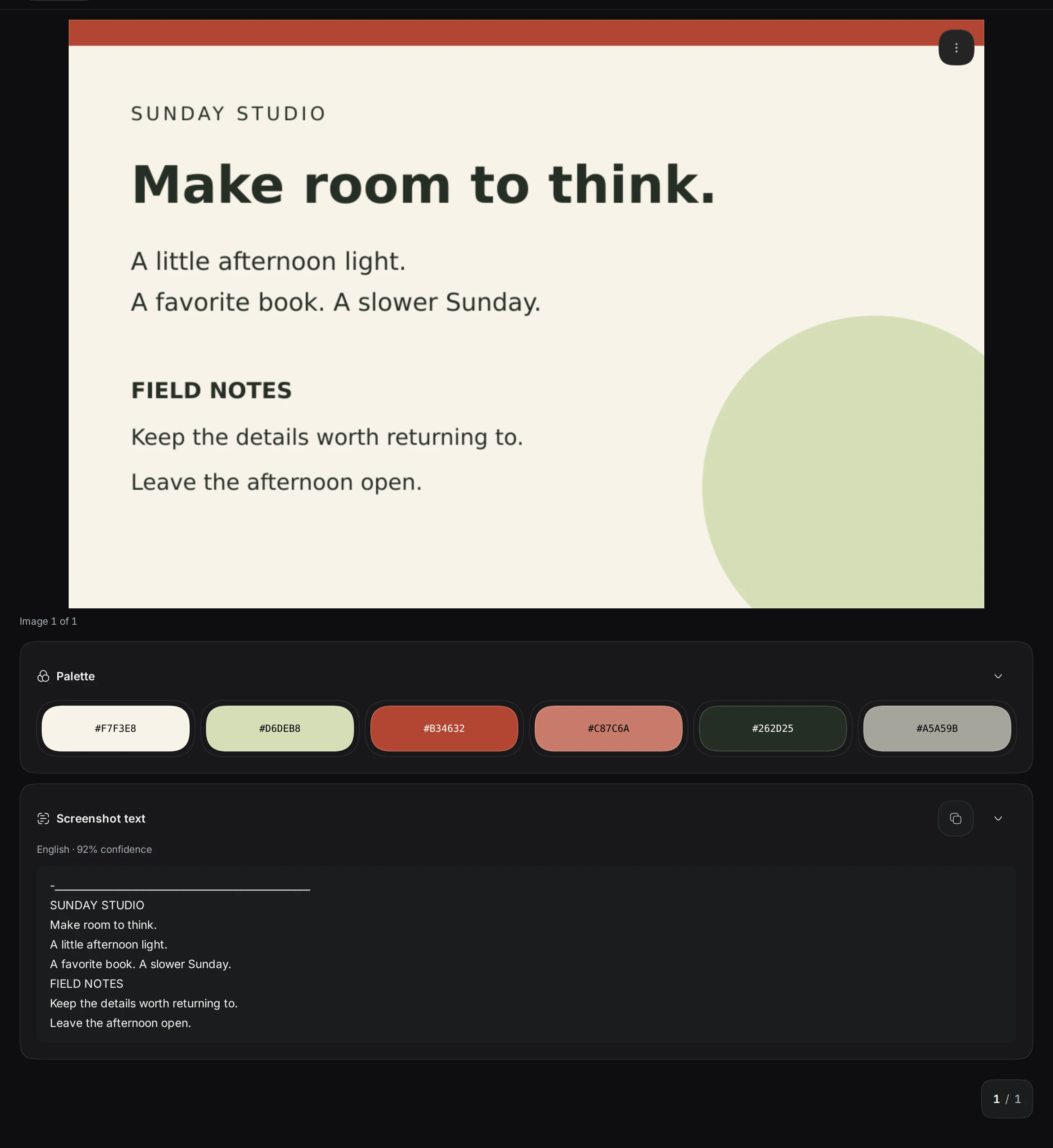
A screenshot can contain a useful instruction, receipt number, or layout detail. Later, you may remember its words or colors better than its filename. Keepall can recognize English image text and extract a color palette so you can search for those details.
Start with a screenshot you need for a current task. Choose Save item, then Add files, or paste the image with Ctrl/⌘ + V. Add a source link if it came from a website, and a short note describing why you saved it. Choose a collection and save.
Recognize the screenshot text
- Open the saved image and its three-dot menu.
- Choose Read text. Progress appears while recognition runs; Cancel stops it.
- Review the selectable result in the Screenshot text card below the image.
- Use the copy control if you need the text elsewhere.
Recognition runs on your device. The engine and English data need a connection to Keepall on first use. Later offline use depends on your browser retaining those files. Text already recognized stays in the local library.
Sharper images and closer crops usually produce better results. Check important numbers and wording against the original image. If recognition fails, choose Retry reading text. Use Read text again to refresh an existing result.
The image-text guide covers the controls and limits. This tool recognizes English image text. It does not recognize scanned PDF pages or transcribe video audio.
Search for words in the image
Return to the library and search for a word you can see in the recognized text. The example above includes "FIELD NOTES." Searching "field notes" finds that image alongside files containing the same words.
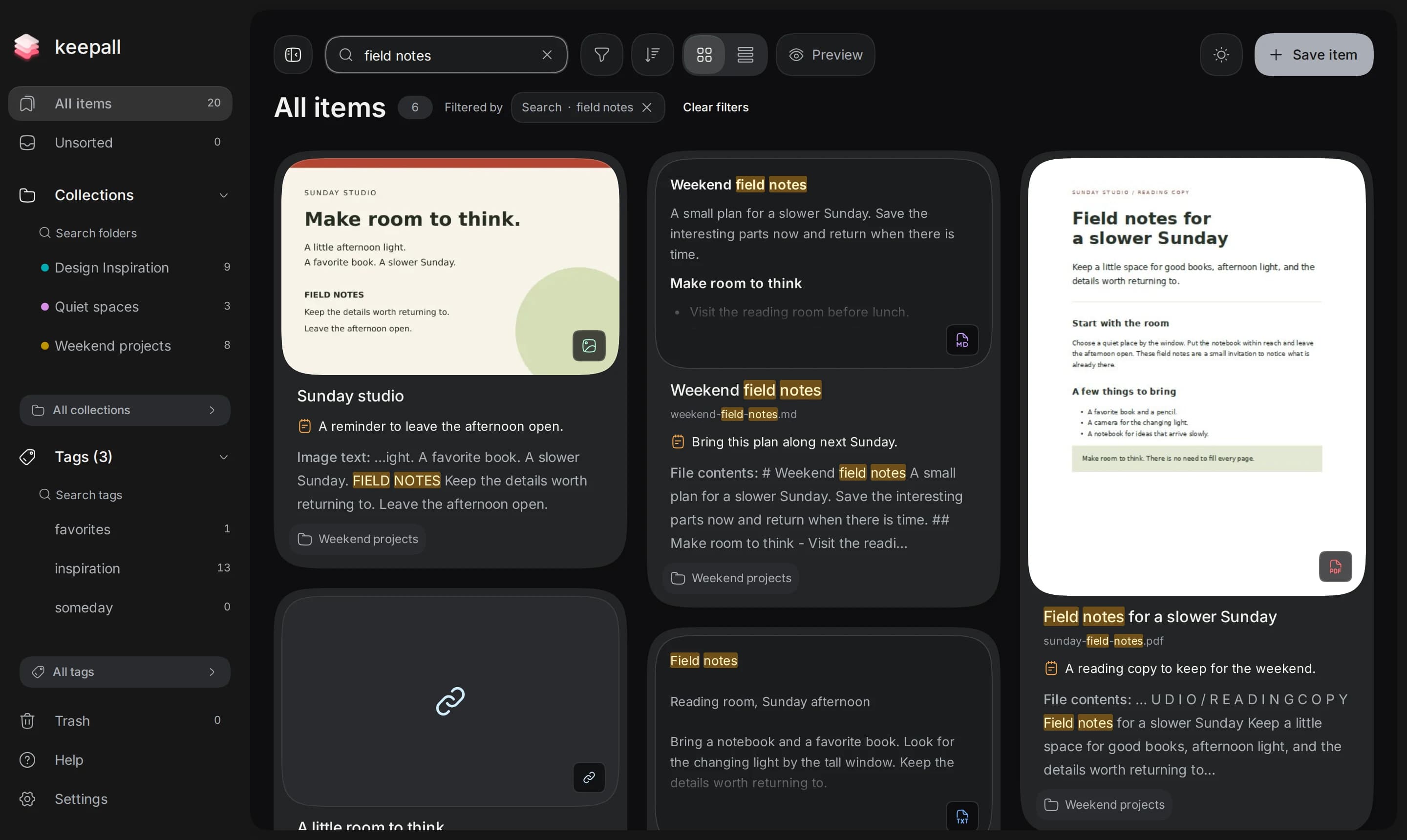
Use the type filter to narrow results to images, or open the collection where you saved the screenshot. Search stays within the current collection, tag, and type filters. Check them if you expect a result that is missing.
Extract a palette and search by color
Open the image's three-dot menu and choose Extract palette. Keepall samples up to six dominant colors locally. Select a swatch in the Palette card to copy its hex code.
To find similar colors, right-click a swatch and choose Search library for nearby colors. You can also type a query in library search:
color:redfinds images in a broad red color family.color:#B34632finds nearby shades of the reddish color shown in this example's palette.color:red receiptrequires both a matching color and the word receipt somewhere in the item.
Only images with an extracted palette can match a color query. Extract palettes from the images you want to compare first. See palette controls and color search.
Preview the results
Choose Preview beside the grid and list controls, or choose Preview from a particular item's menu. Use Back and Next to compare the saved items in the current result order.
For a long screenshot, choose Scroll to read it at the available width. Choose Fit to see the whole image. Gallery buttons browse images within one item; Back and Next move between separate saves. Escape closes preview and returns to the library.
Use the image-preview guide for the controls. Once you find the screenshot, add any words that would have made the search easier to its personal note.
Back up the images and results
Keepall backups include the original saved images, palettes, and recognized text. After adding or analyzing a useful batch, open Settings, choose Storage & backups, then Export backup. Keep the file outside the app.
Each gallery image keeps its own analysis. Replacing or removing the original removes its palette and recognized text too. Follow the backup guide before clearing browser data or moving your library.
Open your library